Author: aks0911

  • Install And Configure VSFTPD On Ubuntu

    VSFTPD

    As the name suggest vsftpds stands for Very Secure File Transfer protocol Daemon Server. This is the default FTP server in Ubuntu and many other linux systems.

    Installation

    Mostly vsftpd is installed on you system by default and if not you can do the same by entering following commands in terminal 

    First of all update your linux 

    sudo apt-get updateNow to install vsftpd input

    sudo apt-get install vsftpd 

    Configuration 

    Now after you have successfully installed vsftpd

    Start configuring its conf file located in etc folder

    Note : Be extra cautious while editing vsftpd.conf file in nano editor, because if you make any mistake altering server configuration it will be a tedious process to troubleshoot. For safety you can backup original configuration file

    Backup original vsftpd configuration file

    Sudo cp /etc/vsftpd.conf /etc/vsftpd.conf.bak

    Now open original conf file

    sudo nano /etc/vsftpd.conf

    Main configuration parameters 

    After editing configuration file do not forget to restart vsftpd by typing

    sudo /etc/init.d/vsftpd restart

    Check vsftpd status

    sudo systemctl status vsftpd

    Check Firewall Status

    sudo ufw status

    Now to access your newly created ftp server enter following 

    ftp://localhost

    Here localhost is the IP address of your server machine

    To know IP address enter following command

    hostname -I | awk ‘{print $1}’

    This will output your IP address which you can use in place of localhost

    With the above configuration you can access your ftp server on your local network from different devices.
  • Install Apache Web  Server On Linux

    Install Apache Web Server On Linux


    Apache server

    Apache is a free, open source and most popular HTTP web server. It establishes a connection between a server and the browser like mozila, chrome, opera etc.

    Here I will show you how to install Apache server on linux OS (Ubuntu 20.04)

    Install Apache server on Ubuntu

    First of all update your operating system, this will update all outdated packages and will make installation error free.

    sudo apt-get update

    Now run the foolwing command

    Sudo apt-get install apache2

    To verify correct installation of appache web server enter the following address in your browser on the host machine.

    http://local.server.ip

    The result page will be like this

    Here local.server.ip is your server host ip address to know the IP address you can simply enter the following command in terminal

    hostname -I | awk ‘{print $1}’

    Configure the default UFW firewall to listen on port 80

    sudo ufw app list

    sudo ufw allow apache

    This will allow apache connections through firewalls

    Now to know the ufw status enter

    sudo ufw status

    Apache system control commands

    To stop apache services 

    sudo systemctl stop apache2.service

    To start apache service

    sudo systemctl start apache2.service

    Restart

    sudo systemctl restart apache2.service

    Status

    sudo systemctl status apache2.service

    Setting up apache server

  • Install Android Studio On Ubuntu

    Install Android Studio On Ubuntu

    Installing android studio

    First of all download the android studio package for linux from the website

    https://developer.android.com/studio#downloads

    Then unpack the package in the desired directory in Home in my case I have unpacked it on Desktop.

    Now launch the terminal and navigate to the android studio folder

    cd Desktop/android-studio

    Or

    cd Desktop

    cd android-studio

    If you have trouble finding required directory path visit

    Then launch studio

    Enter the following command

    ./bin/studio.sh

    After few seconds a welcoming screen will appear on desktop here click Next to continue setup

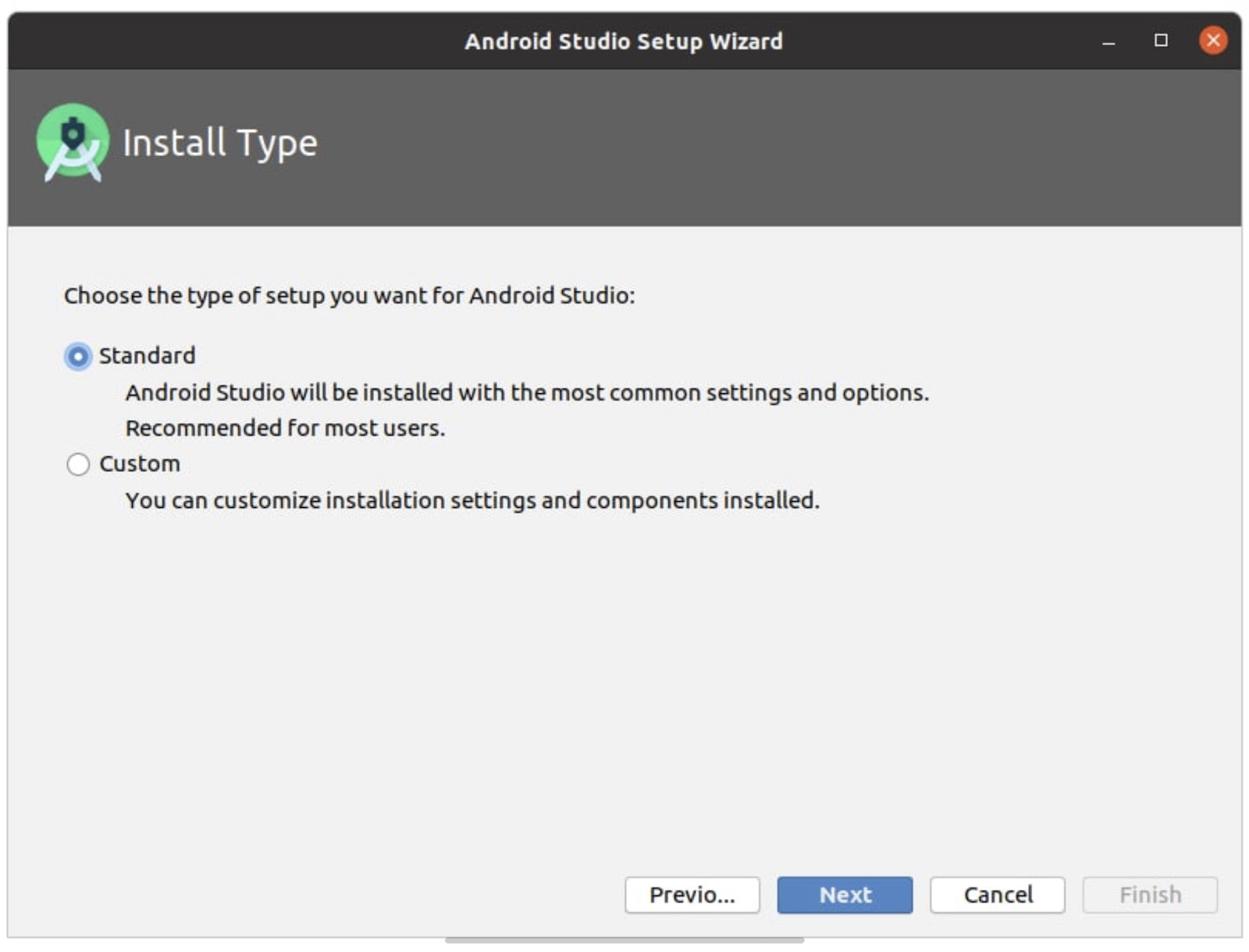
    Choose type of installation

    Select user interface theme

    You may select Dark or light theme as per your choice

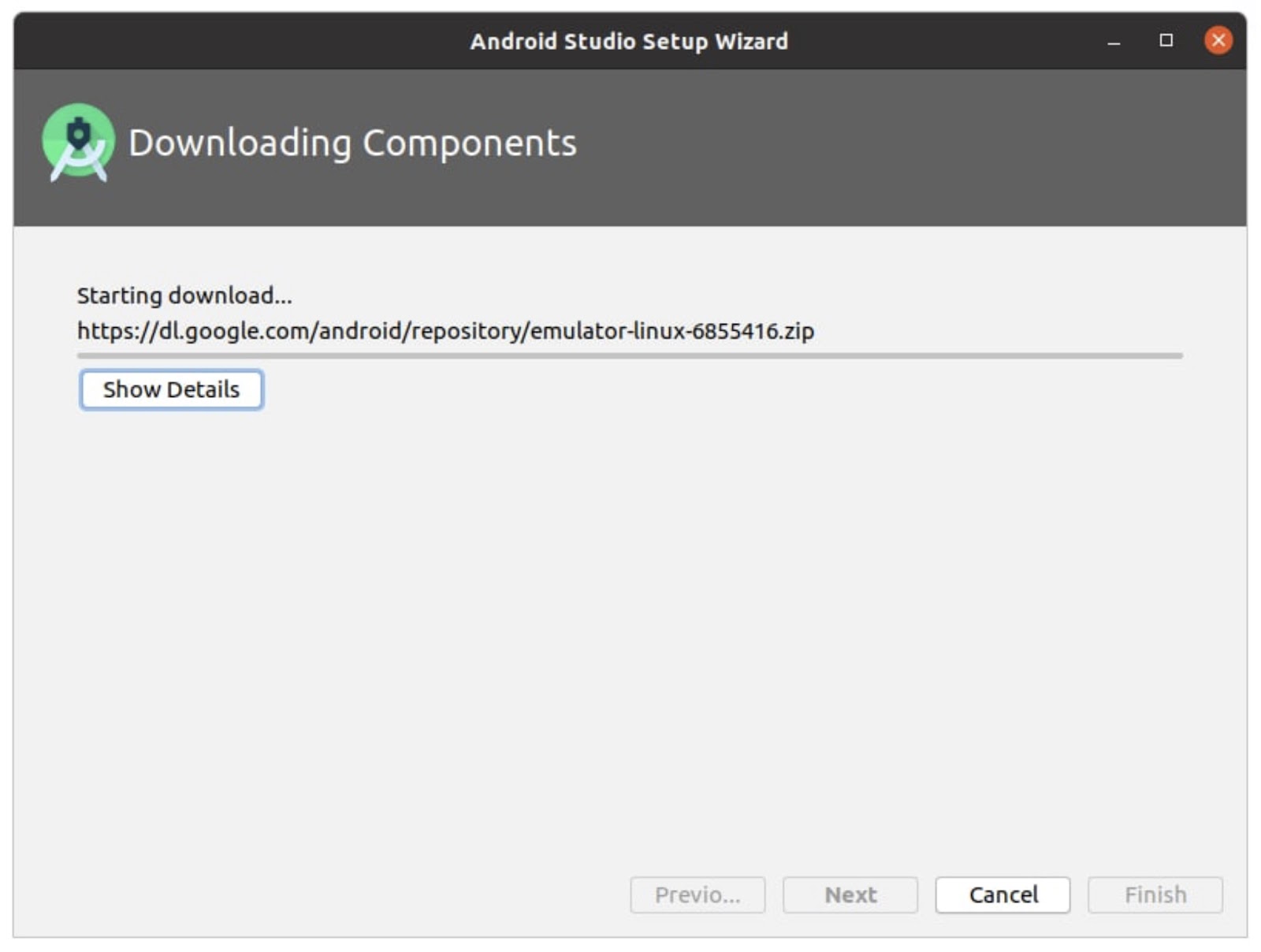
    At this point of installation you need to have an active internet connection to download required components, this will approximately take 1GB of data.

    After successfully installing android studio following window will appear 

    Now you can start using the studio to code and debug android applications.

    Soon in the upcoming post I will write different articles helpful for beginners.

  • Know About Your System Hardware in Terminal: LINUX

    DMIDECODE

    So Friends event occurs when you have to know about your system Hardware, on occasions like when upgrading your system or while replacing components. Like in windows have many options to know about your hardware but in Linux operating system you don’t have many options. So here I will discuss about some useful tool to know about your hardware installed in the systems, and the tool is DMIDECODE

    DMI stands for Desktop Management interface, using this powerful tool you can easily decode your whole system installed components vital information like RAM, Processor, BIOS details and various other cards installed.

    so first of all we have to launch terminal and then enter the following command

    sudo apt- get install dmidecod

    If your system had DMID code not stalled then this will install the DMIDECODE tool after this you have to enter the following command to know about your System board

    sudo dmidecode -t baseboard

    This command will basically show you Base Board information and to know more about your system hardware you can simply write the following command

    sudo dmidecode

    This command will show you all the information about BIOS, motherboard the RAM  installation about the the net card Wi-Fi card and about the processor installed etc this way you may know about your motherboard and all the hardware information on a Linux using terminal you need not open the laptop case to check the make andmodel of individual cards.

  • InBuilt App lock For Apple IOS

    InBuilt App lock For Apple IOS

    App Lock

    Apple has given most secure screen lock finger prints / Face ID, but when it comes to lock individual apps Apple does not give much leverage to third party apps due to security reasons.On many occasions someone we know from our relatives or friends ask to use our devices for a particular application, and you cannot resist giving then comes the need of App Lock feature.

    There are two methods inbuilt in Apple IOS to serve this purpose, first one is Guided Access and second is Screen Time.

    Guide Access 

    First of all navigate to Accessibility in settings then select Guided Access and turn this ON after that set password for guided access.

    Triple click top button to start Guided Access, you can start this for any application. After enabling this setting users will be restricted to the app on which Guides Access was started.

    To stop guided Access double click top button to unlock with Face ID and triple click to unlock with password.

    Screen Time

    Apple IOS  settings have a feature ‘screen time’ using this you can lock any app you want without installing any third party applications.

    Step by Step Guide to Lock Apps

    Go to settings > Screen time

    First Step

    First click on ‘App Limits’ and then select apps that you want to lock or limit access. After selecting apps set time to the minimum possible value, at this time 1 minute is the minimum time you can select.

    Second Step

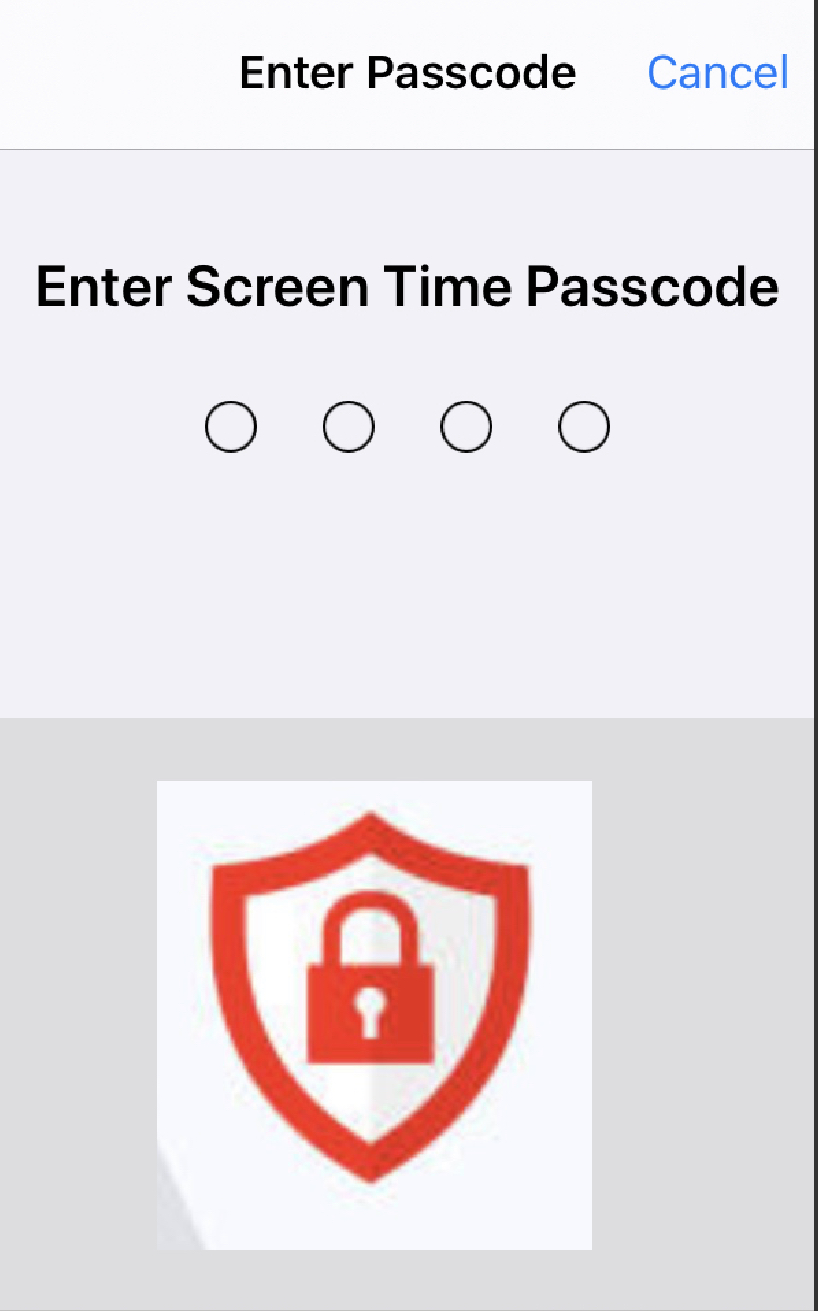
    In this step you have to setup lock password, set a four digit numerical password. Here you will have to provide your Apple ID and password for recovery option.

    Although these settings does not work exactly as an App Lock but even though you can use it as an App Lock.

  • Sync Google Drive With Your Computer

    Sync Google Drive With Your Computer

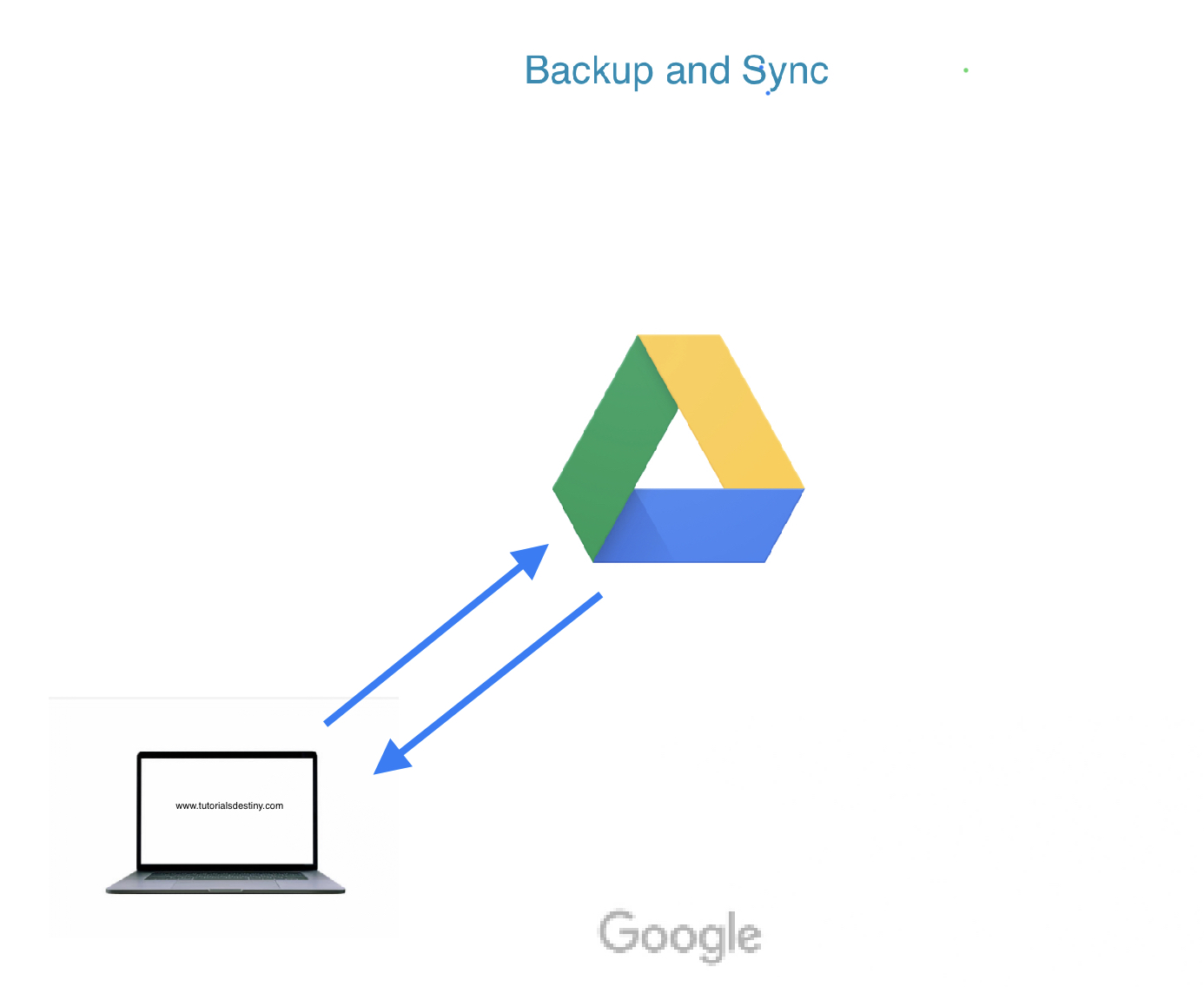
    Backup And Sync

    Google Drive is one of the most popular cloud storage platforms, widely used by people across the globe. It provides 15 GB of free cloud storage to registered users, allowing them to store a variety of data such as media files, images, PDFs, and more.

    Google Drive’s 15 GB storage is shared across other Google services, including Gmail and Google Photos. However, in Google Photos, if you upload photos under the ‘High Quality (unlimited storage)’ option, these uploads won’t count against your 15 GB limit.

    Benefits of Storing Files in the Cloud

    Data Security: Your files remain safe even if you lose your local storage device.

    Accessibility: You can access your files from anywhere in the world by logging into your Google account, with world-class security provided by Google.

    How to Sync Google Drive With Your Computer ?

    If you’re using Google Drive as your primary cloud storage, having a local offline copy of your Drive folders on your computer can provide additional security and enable easy file access across multiple devices.

    Here’s how to sync Google Drive with your computer:

    Step 1: Download and Install Backup and Sync

    First, download Google’s Backup and Sync application from the official website:

    Download Backup and Sync

    Once downloaded, install the application on your computer.

    Step 2: Log In to Your Google Account

    After installation, log in to the Google account associated with your Drive.

    Step 3: Set Up Computer Folder Backup

    In this step, you can select the folders on your computer that you want to back up to Google Drive.

    • If you’re using the free 15 GB plan, avoid selecting large folders to prevent running out of storage.

    • For photos and videos, choose:

    1. High Quality (Unlimited Storage): This option does not count against your free 15 GB storage.
    2. Original Quality: This option will use your Drive storage, so it’s suitable if you have purchased additional storage.

    Step 4: Set Up Google Drive Sync Preferences

    Here, you can choose whether to sync all files from your Google Drive or only specific folders to your computer.

    Once your preferences are set, click OK to complete the setup. Now, your Google Drive and computer will seamlessly sync.

    Managing Sync Settings

    If you wish to change your settings later:

    1. Open the Backup and Sync application by searching for it on your computer.

    2. Update your backup and sync preferences as needed.

    Upgrading Google Drive Storage

    If you need more storage space, you can upgrade your plan. Visit Google One to explore available storage plans.

    Conclusion

    Syncing Google Drive with your computer ensures your files are backed up, easily accessible, and safe. Whether you’re using the free plan or a paid one, Google Drive provides a secure and reliable way to store your important files both locally and in the cloud.