Tag: Google Drive

  • Share Photos without loosing Original Quality

    Transfer Files Using Google Drive

    Situation occurs when you have to share photos and videos to someone else, but if you use Whatsapp, Telegram or other such services you will loose the original Quality of your File, which is a problem.

    Best way to share photos in original quality

    There are various methods of sharing photos but the best of them is Google Drive

    First of all you create a Folder in your drive for example I have created and named it ‘Transfer’.
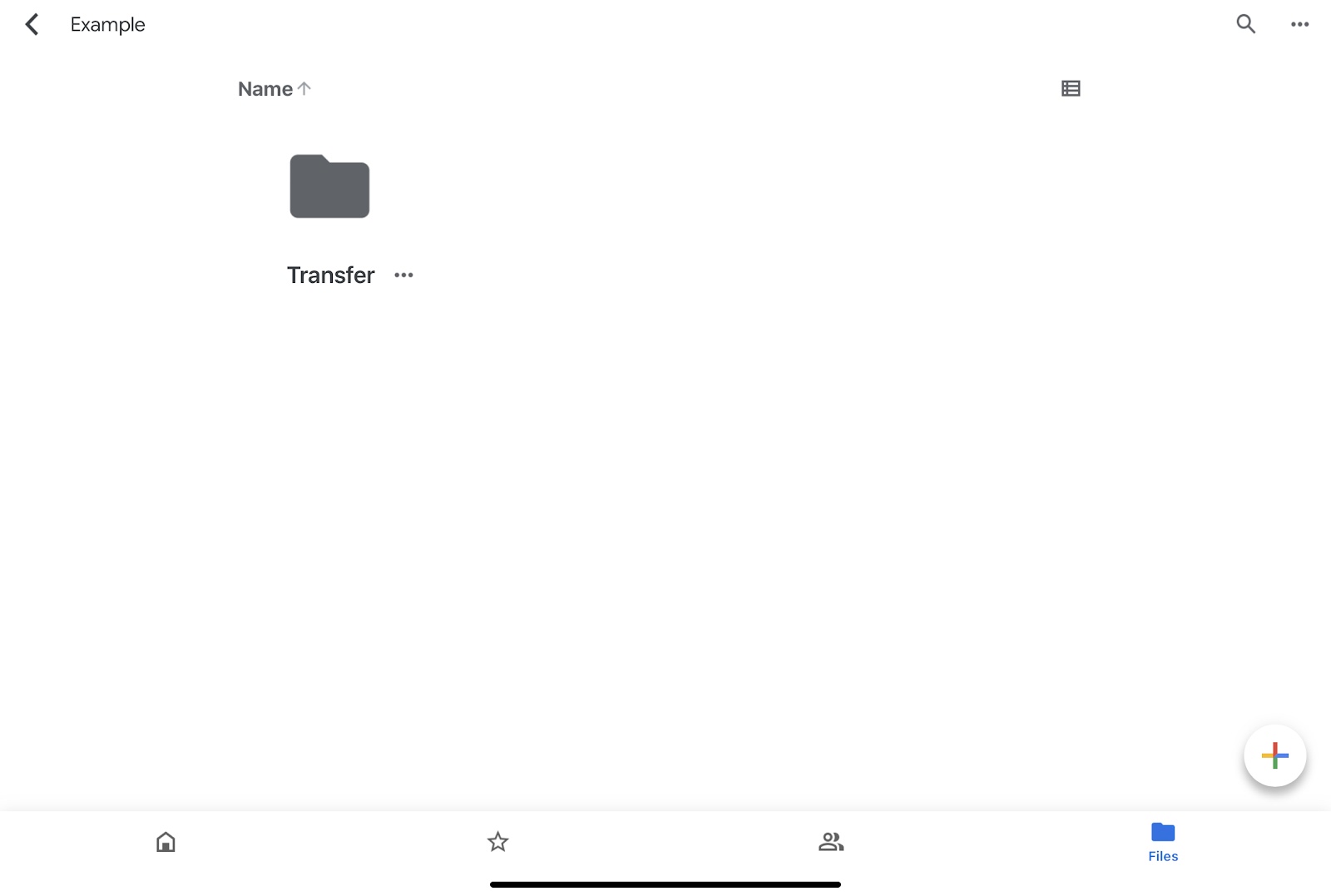
    Then click the + button at the bottom of the screen and upload the photos and videos you want to share in the Folder you have created.

    After you have uploaded all files just go to options and click on share option and enter the persons email address you want to share the files.

    Also you can select what recipients can or cannot do.

    Viewer: can Only view the Files

    Commenter: commenter can view and comment on photos and videos (Files)

    Editor: Editor can view, comment and edit Files

    An alternative way is to use the copy link option. Once you copy the link you can share the link and then give access once requested by the recipient.

    Advantage of this method of transferring files is that you can upload once and share many times as per your requirement.

    Once the job is completed you can delete the complete folder in this case ‘Transfer’ folder or individual files in the folder which you no longer want to share. Or you can delete the recipient.

    Disadvantage is that Google Drive Free subscription has limited storage of 15 GB. But you can upgrade your subscription plans to know more visit
    https://one.google.com/about

  • Sync Google Drive With Your Computer

    Sync Google Drive With Your Computer

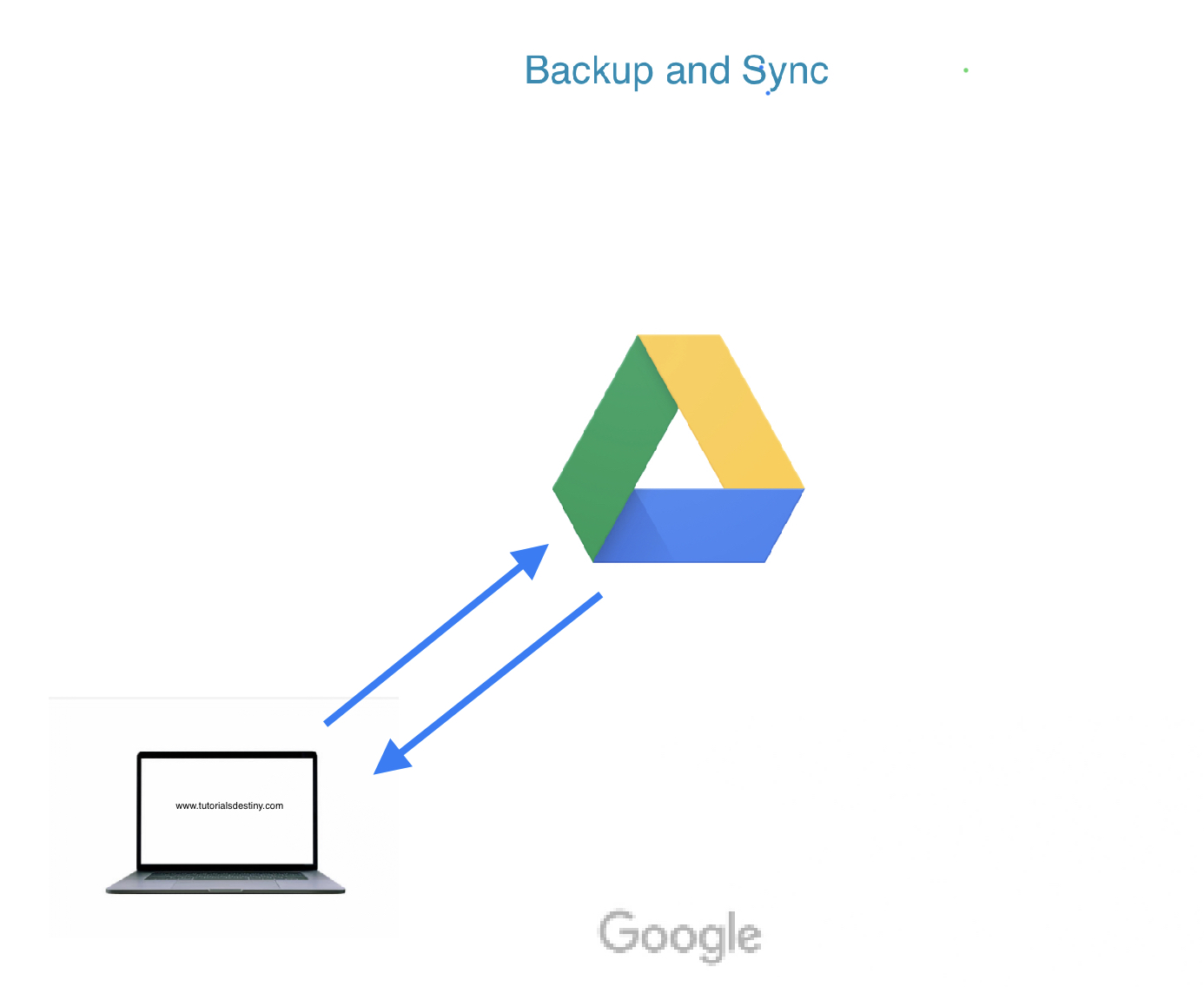
    Backup And Sync

    Google Drive is one of the most popular cloud storage platforms, widely used by people across the globe. It provides 15 GB of free cloud storage to registered users, allowing them to store a variety of data such as media files, images, PDFs, and more.

    Google Drive’s 15 GB storage is shared across other Google services, including Gmail and Google Photos. However, in Google Photos, if you upload photos under the ‘High Quality (unlimited storage)’ option, these uploads won’t count against your 15 GB limit.

    Benefits of Storing Files in the Cloud

    Data Security: Your files remain safe even if you lose your local storage device.

    Accessibility: You can access your files from anywhere in the world by logging into your Google account, with world-class security provided by Google.

    How to Sync Google Drive With Your Computer ?

    If you’re using Google Drive as your primary cloud storage, having a local offline copy of your Drive folders on your computer can provide additional security and enable easy file access across multiple devices.

    Here’s how to sync Google Drive with your computer:

    Step 1: Download and Install Backup and Sync

    First, download Google’s Backup and Sync application from the official website:

    Download Backup and Sync

    Once downloaded, install the application on your computer.

    Step 2: Log In to Your Google Account

    After installation, log in to the Google account associated with your Drive.

    Step 3: Set Up Computer Folder Backup

    In this step, you can select the folders on your computer that you want to back up to Google Drive.

    • If you’re using the free 15 GB plan, avoid selecting large folders to prevent running out of storage.

    • For photos and videos, choose:

    1. High Quality (Unlimited Storage): This option does not count against your free 15 GB storage.
    2. Original Quality: This option will use your Drive storage, so it’s suitable if you have purchased additional storage.

    Step 4: Set Up Google Drive Sync Preferences

    Here, you can choose whether to sync all files from your Google Drive or only specific folders to your computer.

    Once your preferences are set, click OK to complete the setup. Now, your Google Drive and computer will seamlessly sync.

    Managing Sync Settings

    If you wish to change your settings later:

    1. Open the Backup and Sync application by searching for it on your computer.

    2. Update your backup and sync preferences as needed.

    Upgrading Google Drive Storage

    If you need more storage space, you can upgrade your plan. Visit Google One to explore available storage plans.

    Conclusion

    Syncing Google Drive with your computer ensures your files are backed up, easily accessible, and safe. Whether you’re using the free plan or a paid one, Google Drive provides a secure and reliable way to store your important files both locally and in the cloud.