Tag: must knuw features

  • Gmail Features You Must Know

    Gmail Features You Must Know

    Get Most Out Of Gmail

    Gmail is one of the most popular mailing service on the planet, almost each one of us uses it in one or another way. But do you know, Gmail has released many features since its birth. Here We will learn some interesting and productive features.

    Here are Gmails Top features

    Note: All screenshots used below are for gmail web for gmail on iOS and android it is slightly different. If you face any problem write in the comment box.

    Schedule email

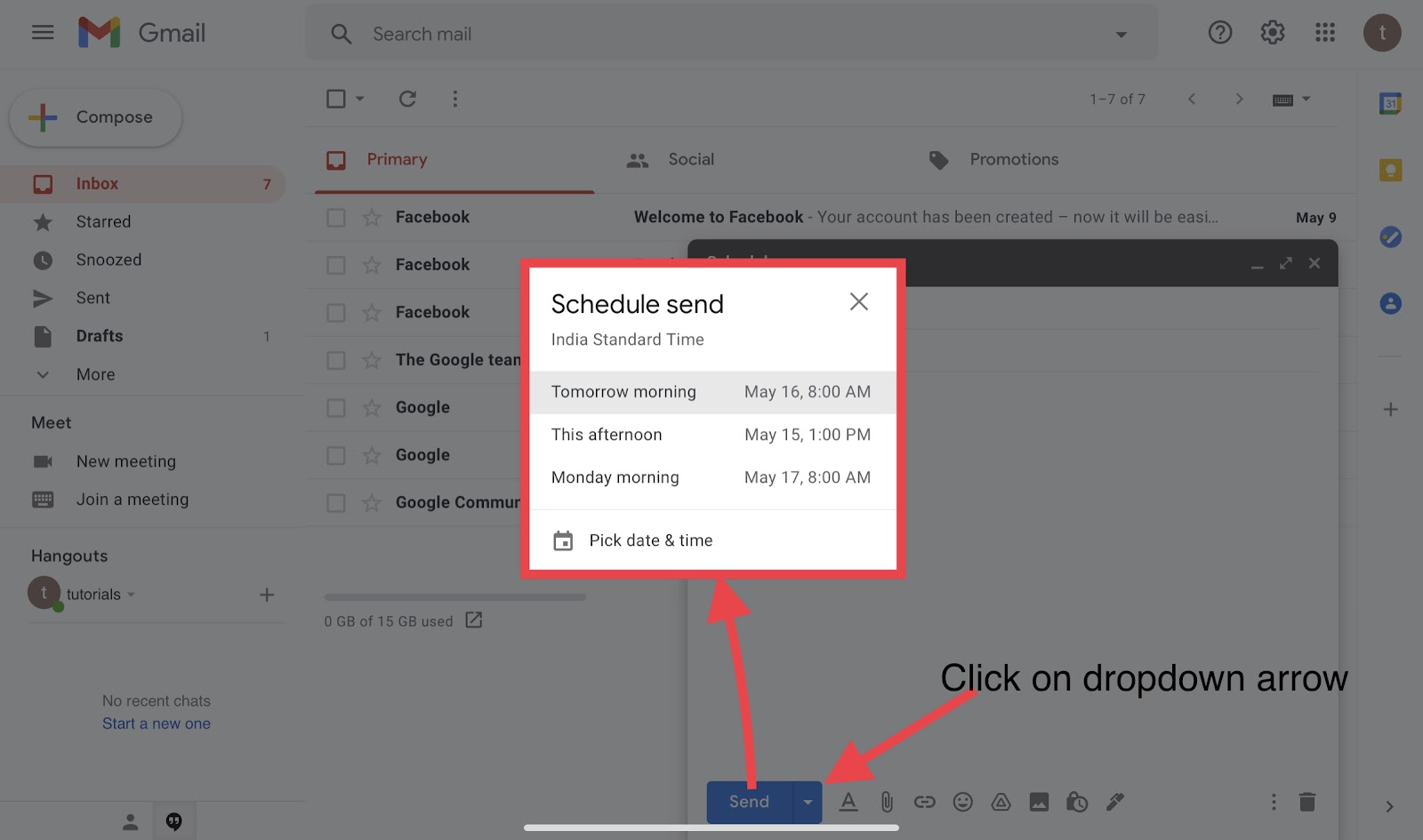
    Gmail provides you a feature of scheduling emails. You can schedule your email to be sent tomorrow morning, tomorrow afternoon or you can choose your prefered date and time.
    Undo Send Action (Get some more time to correct yourself)

    While sending, moving, or deleting mails in Gmail you must have seen a “undo” popup.

    Do you know? You can increase the default time of 5 seconds to 10, 15, 20, 25 and maximum of 30 seconds. These extra seconds you increase will give you some more time to correct your mistakes.

    Smart compose (AI assistance )

    Gmail features a smart compose feature which uses AI (Artificial Intelligence) to adapt as per your writing habits.

    Smart compose automatically completes your sentences while writing emails.

    To enable smart compose on the web go to settings then turn ON  “Writing Suggestion”.

    Similarly you can enable this feature on iOS and android gmail apps just go to settings and select your email account then turn on Smart Compose.

    Confidential Mode

    Gmail provides you an extra layer of security while sending confidential emails. This feature can be accessed by tapping on the padlock symbol while composing the email, for iOS and android gmail app tap on three dots on the top right corner and select confidential mode.

    Recipients of confidential emails cannot send, copy or print your email further you can also set the expiration time for these emails.

    Also there is an option to password restrict access to your email with sms passcode.

    Translate Emails

    Google has incorporated its Google translate into Gmail, now you can translate emails to your desired language using the translate message option. Just after opening any email you will see a translation bar, and if not then just click on the three dots (menu option ) select “translate message” option and then in the translation bar choose your desired language.

    Save Attachments To Google Drive 

    Some of the emails you receive might contain attachments which you want to save for future reference or record. Now Google has link Gmail and Drive together there is no need to download and save you attachments on your device you can directly click on the drive icon and the attachments will be automatically uploaded to your Drive.once you open the attachment Drive icon appears on the top bar in the same way you can save attachments on iOS and android apps.

    Change Gmail background theme

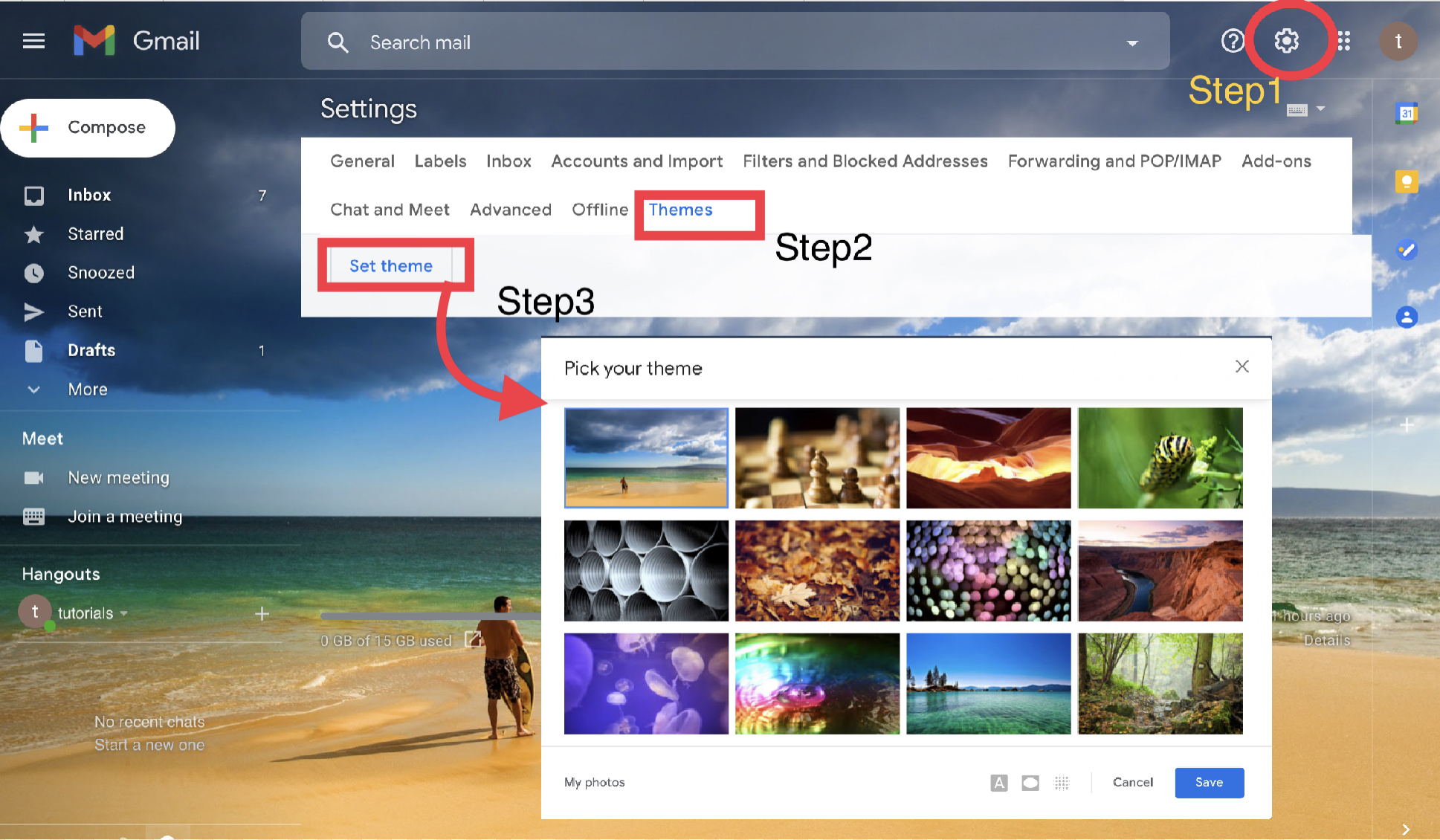
    Gmail offers background themes which you can access by tapping on the settings icon below is the screenshot. 

    After applying the theme your email will get a totally new look. You have a lot of themes to choose from and you can customise your own theme.

    Gmail Chat (Early Access )

    With a growing number of platforms for Chats and calls over Data connection like Whatsapp, Messenger, twitter etc Gmail now has one interesting and useful Gmail Chat feature. This feature will allow you to chat with your friends in a more quick and responsive way.
    You can mail, chat, and meet all in one place. To enable chat in Gmail  Tap on setting and then “Chat and  Meet” tab and select “Google Chat”

    After enabling Google Chat, a chat box will appear on the left side panel. From there by clicking on + icon you can start a new chat.


    You can enable google chat in Gmail App on android and iOS also.

    As soon as new interesting features arrive it will be published here. If you face any problems implementing the above features you can write in the comment box.
  • Top 10 IPad/Iphone Features You Must Know

    Top 10 IPad/Iphone Features You Must Know

    Top IPad/IPhone features you might not be knowing 

    As we all know IOS is best known for its strong privacy. But along with privacy it also provides some exclusive features which you will not find anywhere else.

    Here we are going to discuss some of the IOS features which you must know.

    •  Take screenshot of the full web page with editing enabled

    When it comes to screenshot IOS has one exclusive feature which you will not find anywhere else.

    On IOS you can take the screenshot of whole webpage if you are using Safari as the browser.

    To do so just take the screenshot from your IPad/Iphone, click top button and volume up button simultaneously.

    Now select from the top navigation bar ‘Full Page ’ in place of  ‘Screen’. And then save as PDF

    You can save it as pdf file and edit the pdf afterwards.

    •  Control Torch brightness 

    On IPad you have an inbuilt torch app but you might not be knowing that you can also increase and decrease its brightness.

    To increase or decrease brightness long press the torch icon then a slider button will appear from there you can control the brightness of your torch

    •  Copy and past between ipad and iphone

    Now you can copy and paste your clipboard between IPad and Iphone directly.

    You can try this feature by simply copying any text on one device and use paste option on the other device.

    •  Scan documents directly into files on your IPad 

    Open the file app on your IPad/IPhone and click on the three dots on the top of side navigation panel.

    Select ‘scan documents’ from the menu scanned document will be saved in the corresponding folder.

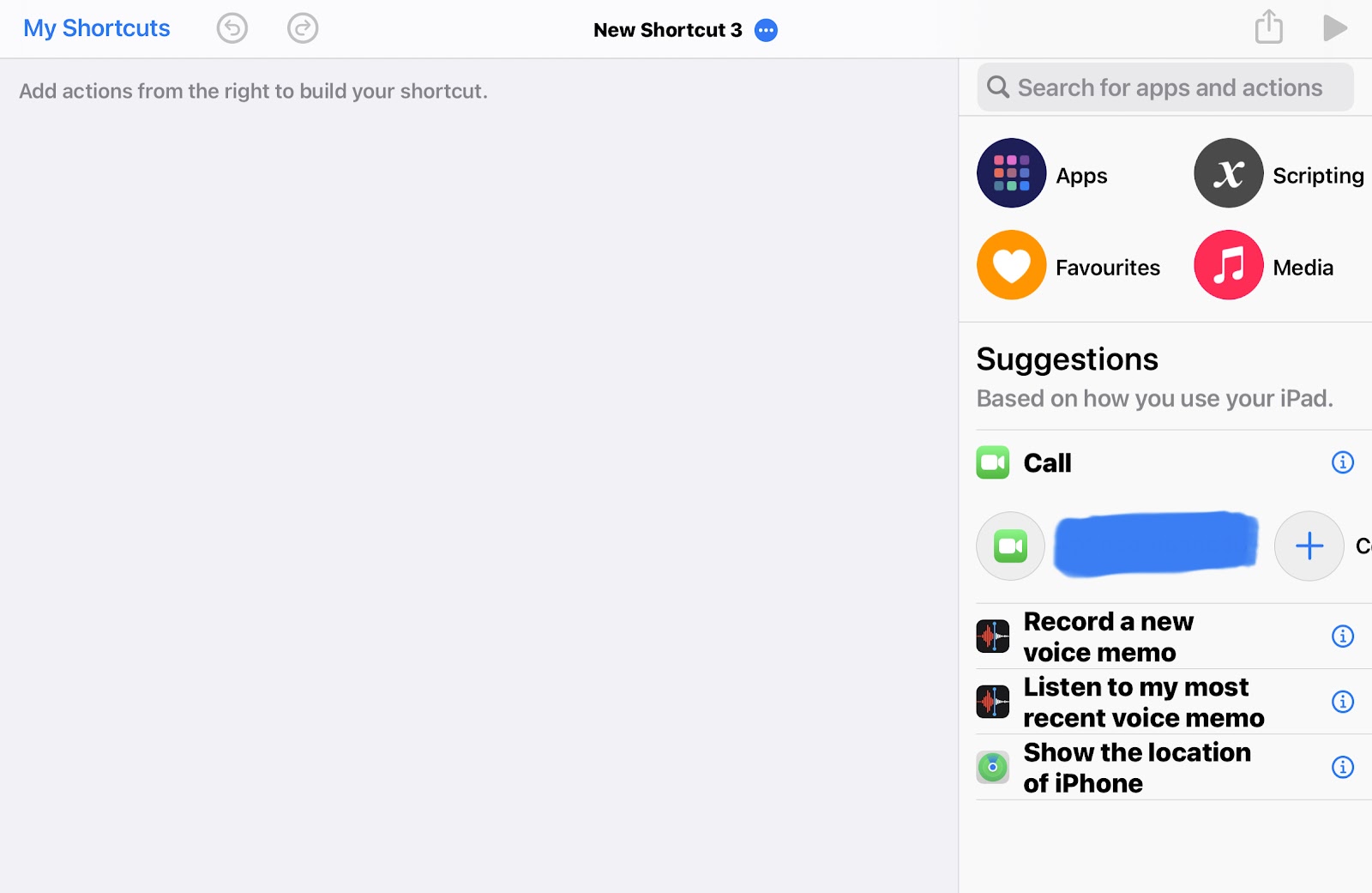
    •  Make custom shortcuts for ‘Hey Siri’  

    On IPad/Iphone ‘Hey Siri’ is a virtual assistance you can ask siri for music, call messages etc.

    In addition to the general voice commands for Siri you can also create your own custom commands using shortcuts.

    First of all run “shortcuts” app then click on + icon and create your custom siri command like visiting specific url or anything else.

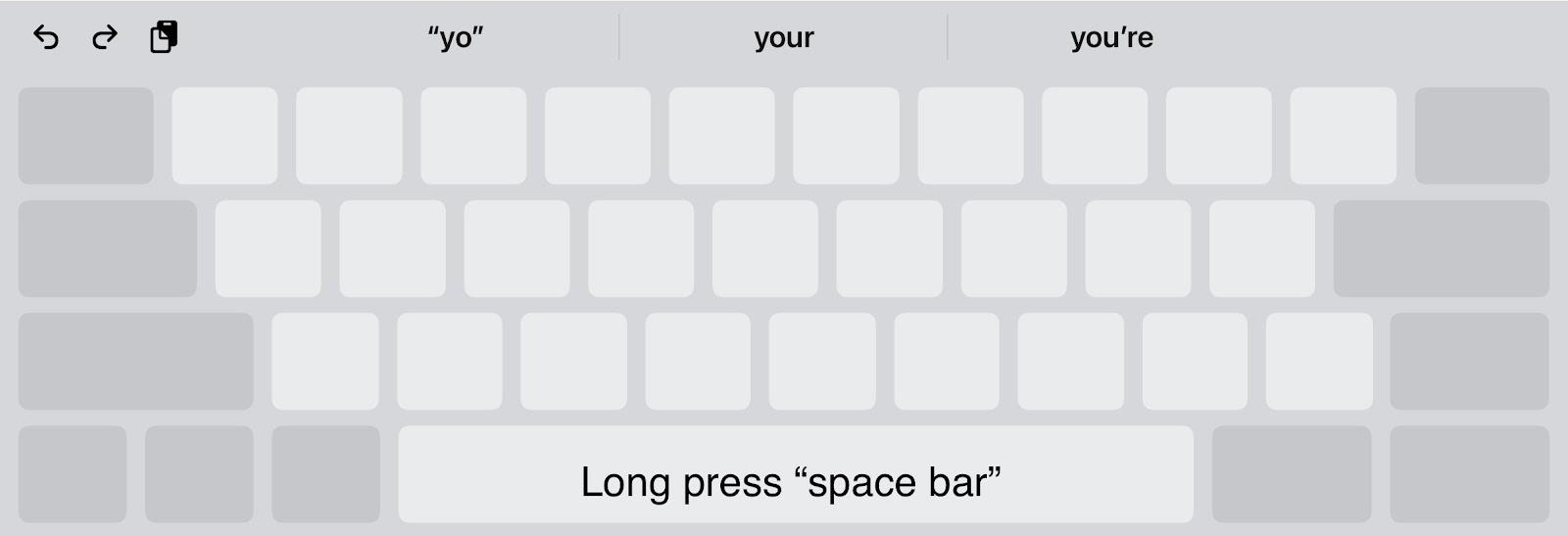
    •  Use your keypad as touchpad to navigate

    On IOS you can use your keypad as trackpad to do so you only have to longpres your space barAfter that you can scroll up, down, left and right as you want.

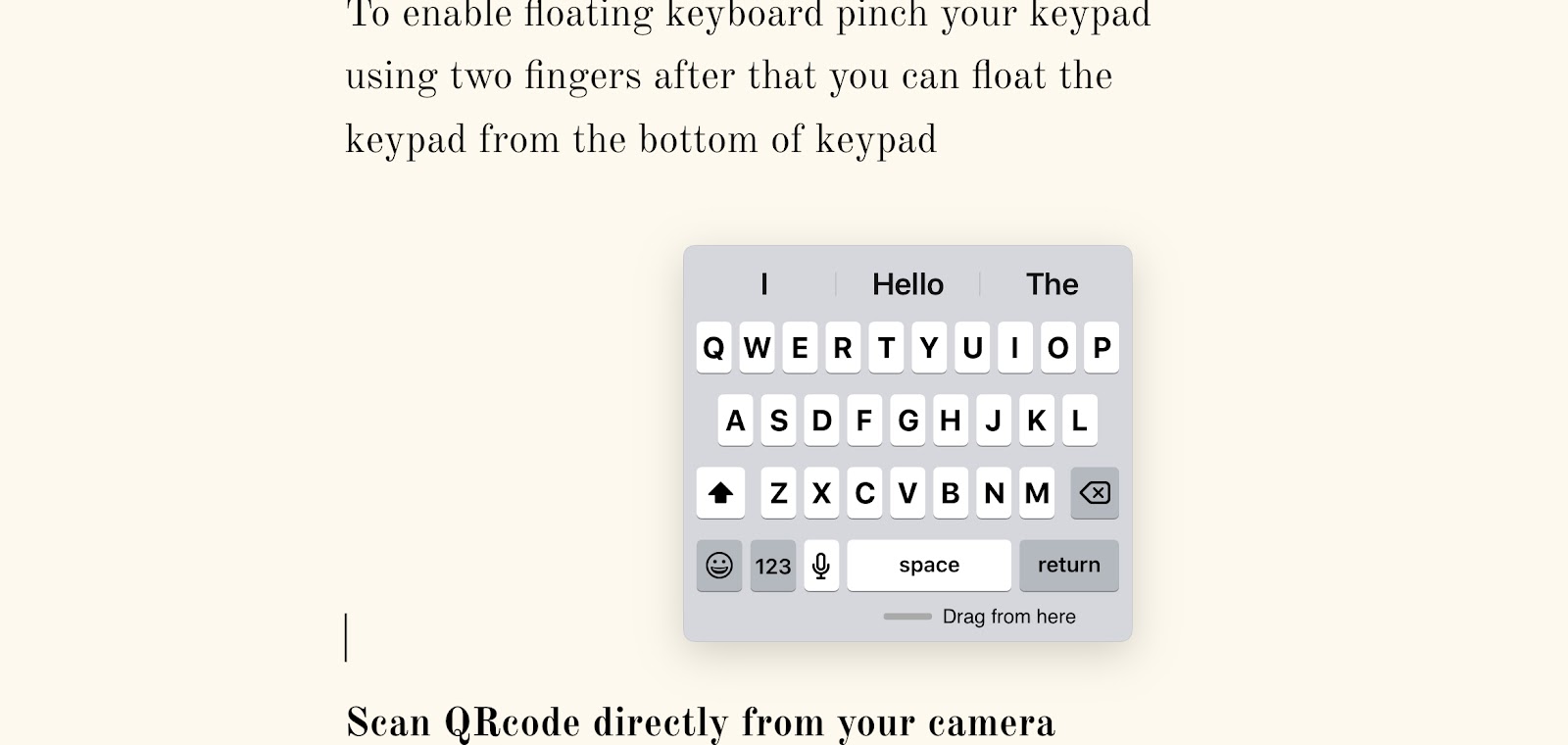
    •  Floating keyboard on IPad

    On IPad floating keyboard is a feature at the time when you want to use one handed

    To enable floating keyboard pinch your keypad using two fingers after that you can float the keypad from the bottom of keypad  

    •  Scan QRcode directly from your camera

    You might not know that on IPad you can scan any QR code directly from camera.

    On focusing your camera on any QR code it will automatically scant it and a pop up will appear after you click it you wll be directed to the linked url.

    •  Hide selected photos on IPad pro

    Everyone of us private or personal photos captured on our device and the time comes when someone from our relatives or friend ask us to watch photos on your IPad than this trick can save your personal pictures

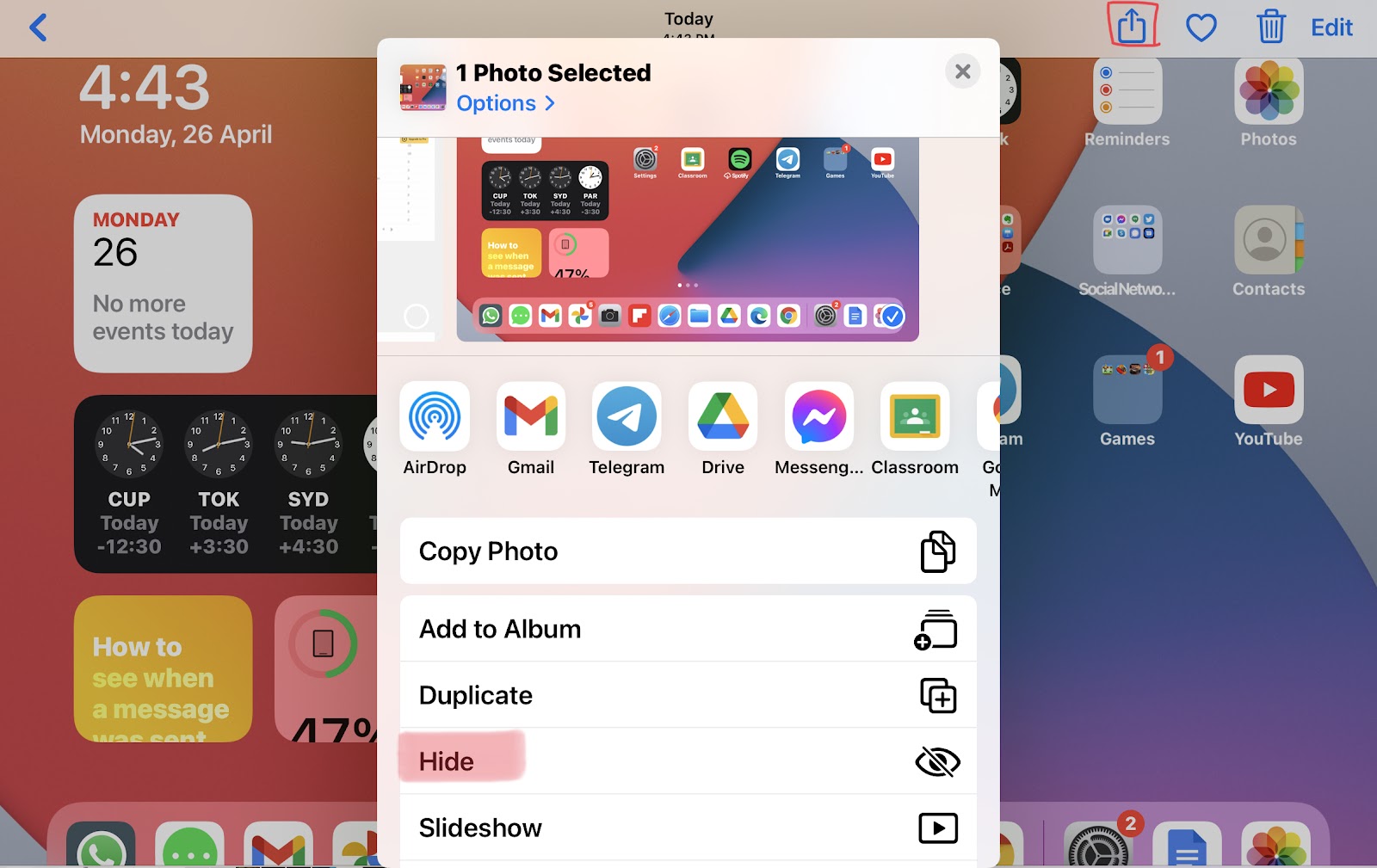
    So first of all open photo app on your IPad and select photos you want to hide.

    Using share button hide the selected photos

    After completing this step your photos will move to a new album named ‘Hidden’ but they are not truly hidden.

    You are required to open settings and navigate to photos in setting and disable hidden album so that no one could see you hidden album.

    •  Restrict Ipad to a particular app

    Sometimes your kids or your friend wants to use your IPad and you don’t want to give them complete access of your IPad so you can restrict their access using guided access in Accessibility setting of IPad. 

    To know more visit