Category: Uncategorized

  • Create NFT For Free

    NFT Definition

    Any Digital art Like image, animation, video etc minted on a blockchain and listed on a market place is termed as NFT.

    Create And Sell NFT

    To create and sell digital art as NFT you first need to have a crypto wallet like Metamask, Rainbow, Argent, imToken etc. This crypto wallet will be required at the time of login.

    Here we will see how to set up a metamask wallet, it is an Etherium based cryptocurrency wallet. You can store and exchange ‘Ether’ and etherium based NFT in this wallet.

    Metamask can be used as a web extension or mobile wallet application, best and easiest way is to download Metamask app from the app store.

    Once installed and configured you will get above type of page here you can edit your wallet name as per your choice.

    Marketplace selection 

    Now after we have successfully set up our crypto wallet we will proceed to select the best marketplace for our NFT.

    Here are some of the places where NFT’s can be bought or sold.

    https://opensea.io/

    https://zora.io/

    https://rarible.com/

    Marketplace selection depends on various factors like 

    Blockchain Gas Fees (Minting  Fees) :  Gas fees is the main deciding factor, before selection of the platform check out the gas fees.

    Blockchain gas fees are  high for etherium blockchain due to its popularity among NFT lovers whereas some newer blockchains have less or nill fees

    For example you can mint your NFT for free on Blockchain polygon on 

    https://opensea.io/

    Listing fees or brokerage commission: listing fees of different marketplace  also vary as per their popularity

    Popularity of Marketplace: popularity of marketplace is also one of the important factors of your NFT getting sold. So before selecting the place do a web survey for its popularity.

    Create and Sell

    Here, we will select opensea as the marketplace and polygon as the blockchain.

    First of all visit the website

    https://opensea.io/

    On ‘opensea’ click on create button then on next window click on “walletconnect” if you are using same device on which wallet is installed Otherwise select as per your requiremets. 

    If You click on walletconnect your wallet will launch and once you give the sign in permission you will be logged into the opensea platform.

    Caution: NFT is a growing technology so the risk of scams and hacking are also high so be extra cautious while giving any permissions or visiting URLs.

    After you’ve successfully logged in again click on create button this time you will be redirected to page where you have to browse and upload your digital art, give it a name, select the blockchain on which you want to host your NFT. Keep in mind etherium blockchain charges fees whereas polygon network is free at this time.

    So you can start on polygon and thereafter move to etherium  blockchain when you feel it necessary.

    So move on and create your First NFT share your experience in the comment box, if you face any difficulties in above steps please do write below in the comments.

  • BIOS setup and OS installation

    BIOS Settings and OS installation

    BIOS Setup

    After successful installation of the machine power on the system.

    You will be launched into the BIOS of the System. Different motherboards have slightly different BIOS setups.

    In the BIOS you can set up your fans speed, change boot order, overclock your system and know your hardware information.

    Selection of Operating System

    You can select your system OS from many available Operating Systems (Windows, Unix, Linux etc).

    Windows is the most popular OS.

    Here I will show you how to install Windows on your Internal Disk.

    First of all change boot order from BIOS settings, set USB hard disk on first priority.

    OS Installation 

    Next, prepare a Windows bootable USB.

    Requirements:

    Here I will explain one of the Bootable USB creating tool 

    “Rufus” .

    In the rufus selection box, select the USB drive for OS installation in the “device ” selection box.

    In the “Boot selection” option select the windows iso image file.

    In the “partition system” select GPT or MBR depending upon your BIOS

    Morden BIOS supports the GPT partition system and older ones support the MBR partition system. 

    After all the necessary setups  click on the ready button, wait for some time to complete the process and then safely remove the USB drive.

    Insert USB drive in any of the available USB ports, and follow the installation instructions.

    • Select language and keyboard format.
    • Accept license terms.
    • Select type of installation: upgrade or custom

    Select “custom” for fresh installation.

    Select “upgrade” for upgrade to a new version and keep data from your previous installation.

    • Select installation partition.

    If  you are installing windows for the first time you may have to create partitions.

    Or if you are upgrading from the lower version you will see a list of predefined partitions. If any of the partitions hold any important data do not format or delete them otherwise you will lose the stored data.

    • Installing windows.

    After selection of the windows partition final installation begins. Wait for some time to complete installation.

    When windows restart remove the USB drive or you will again boot into the windows installation process.

    Now the window will set up necessary features and settings to keep it running, wait and follow onscreen instructions.

    Step1: Choose your PC Hardwares.

    Step 2: Hardware installation.

  • Steps to successfully build and run a Gaming Computer

    Step1: Choose your PC Hardwares.

    Step 2: Hardware installation.

    Step 3: BIOS Settings and OS installation


    Step 2: Hardware installation 

    After you have all your Hardwares now is the time to assemble your computing machine.

    So at the first “Get Your Cabinet ready”.

    Every computer cabinet has different configurations so follow the given guide in the package. This article is only to give you a brief idea.

    De assemble all the doors and compartments.

    Points to keep in mind

    • First of all make yourself free from any type of electrostatic charge by touching any grounded unpolished conductor or if possible wear electrostatic gloves and use an ESD mat while working on the PCB (Motherboard ) since even a small static charge can damage a PCB.
    • Keep the work area clean of dust and dirt.
    • Don’t apply excess force while fastening screws on the board.
    • Don’t hurry, be patient and do proper research before any connection.
    • Use proper screws in the proper place.
    • Don’t forget to remove all the protective plastic sheets from the motherboard. 

    Install CPU to the motherboard

    Use the screws and mounting brackets which come with the motherboard packaging.

    Unbox the CPU carefully and don’t touch its pins. Unlatch the CPU mounting point, Follow the installation guide with the motherboard. Put the CPU in its Proper place aligning with the mark on the board and the CPU. Lock the CPU housing latch again, make sure that the safety cap is removed.

    After successfully attaching the CPU, install the CPU cooler mounting bracket on the motherboard. You may fix the CPU Cooler right now, but we will do it later.

    Install Memory Modules (RAM) on the motherboard 

    Install memory modules on the board choosing correct DIMM slots. Refer the motherboard publications to know the correct sequence of DIMM slots and put memory modules in the correct sequence.

    Keep in mind to use all memory modules of the same specifications and make.

    Install SSD or HDD 

    Remove the thermal pad and install the M2 SSD in the position with the help of a locking screw, put back the thermal Pad again.

    Make sure to remove the protective film from the back of the thermal pad.

    To install an HDD, insert the HDDs in the housing provided in the case and give connections SATA from the motherboard and power from the PSU.

    Install motherboard to the cabinet

    After necessary installation put the board in the cabinet aligned with the screw holes.

    Fix the motherboard to the cabinet with the screws provided with your cabinet.

    Don’t use excess force on fixing screws as it may damage the board.

    Install cooling fans and connect them to motherboard 

    Install the required number of cooling fans as per your system heat dissipation capacity.

    Arrange the cooling fans in such a manner that  the airflow is maintained throughout the cabinet and maximum cooling is achieved.

    Generally front is used as air  inlet and back side and top as hot air outlet.

    Connect cooling fans RGB and power connectors to the board.

    Also install a CPU cooler on the CPU with the help of mounting bracket and thermal paste, and give its power and RGB connections.

    Install Power Supply Unit (PSU)

    Unpack the PSU and take out all its cables. Place the PSU in its housing which is generally on the bottom of the cabinet.

    Connect all the power cables (ATX, PCIe, SATA, peripherals etc.) required for your system and put the extra unused cables back into its box for future needs.

    Fix the PSU to the cabinet with the help of screws set provided with PSU.

    Note: position the PSU in such a way that its Cooling fan is well ventilated.

    After all the installations, put all the cabinet door panels back into place and fasten them if provisioned.

    Connect the power cord to the wall socket.

    Step 3: BIOS Settings and OS installation. 

  • Build A Computer A Comprehensive Step By Step Guide

    Computer System

    The Computer System is a very vast subject with lots of varieties. Any configuration of computing hardwares along with its associated softwares can be termed as a Computer System. There are different combinations being used in today’s world, here we will discuss “Personal Computer” 

    Personal Computer 

    These are a category of computing system generally used in home, schools and offices for personal use or in other words for low computing requirements like office use or for day to day tasks. 

    Build A Personal Computer

    You can buy a Preconfigured ready to use PC or build a PC as per your requirements 

    Step1: Choose your PC Hardwares.

    Step 2: Hardware installation.

    Step 3: BIOS Settings and OS installation

    Step 1

    Choose your PC Hardwares.

    First of all decide what type of PC you need (for personal use, for gaming purpose or development purpose)

    Here we will discuss building a gaming PC

    Main parts of gaming computer are:

    Motherboard This is a PCB where all our computer parts will be installed like CPU, GPU, RAM, Storage device, cooling systems etc.

    While selecting MotherBoard you have to be very cautious as this selection will affect all others, that is why I am discussing this part in the beginning.There are various specifications to look after while selecting Motherboards. Here we will discuss them in brief-

    • Form Factor : MotherBoard comes in different form factors ATX (Full size motherboard), Micro ATX and mini ITX. ATX MotherBoards are widely used so they have a great support, these motherboards will give you most modifications and updating support.
    • CPU Support: while selecting your system board you must do some research on what type of CPU it supports like Intel Or AMD, version of CPU and  generation of CPU.
    • Memory Support : Take a note of Memory type support,Max memory (GB), speed, Dual Channel or Single channel and number of DIMM slots.
    • Storage Device : Look For HDD and SSD support, Drive Form Factor, Type of Connector.
    • Expansion Slots: While selection of motherboard keep in mind the number of PCI Slots available and the number of slots you need or will need for future upgradation.
    • Connectivity: Look for connection  support of your board, like available LAN cards, availability of WiFi and Bluetooth and their version.

    CPU (Central Processing Unit) is the brain of any computer system. This performs all arithmetic and logical operations.

    There are mainly two CPU manufacturers in the market, AMD and Intel.

    Both Intel and AMD have many processor lines with different generations, while selecting a CPU you must look for its no. of cores, no. of threads, cache, memory support, and thermal solution required. Last few years releases are listed below:

    Intel

    Intel® Core™ i3 Processors 

    Intel® Core™ i5 Processors 

    Intel® Core™ i7 Processors 

    Intel® Core™ i9 Processors 

    Intel® Core™ X-Series Processors 

    AMD 

    AMD Ryzen™ 9 Desktop Processors

    AMD Ryzen™ 7 Desktop Processors

    AMD Ryzen™ 5 Desktop Processors

    AMD Ryzen™ 3 Desktop Processors

    AMD Ryzen™ Threadripper™ Processors

    CPU Cooler : As the CPU is the brain of a computer system and performs various tasks it also generates a lot of heat and so it requires an effective cooling system. You should choose the CPU Cooling system Depending upon the type of CPU and its heat dissipation capacity. Most of the CPU comes with coolers  from the manufacturers (Stock coolers), stock coolers are good for normal performance but to get better performance without throttling down your CPU capabilities you must choose liquid coolers with big thermal radiators.

    GPU (Graphics Processing Unit): Main task of the GPU is processing graphical Data. This is mainly used for Gaming, graphics designing, in processing AI data and nowadays it is also used for mining crypto currencies. If you are configuring a gaming computer you should choose your Graphic card wisely since nowadays modern games are made of high graphics.

    The name GPU and graphic card are used interchangeably but they both are not same they are different in some ways. A GPU is a chip like CPU whereas a Graphic card is a GPU embedded in its own motherboard, having its own cooling system and power supply and attached to the main motherboard via PCIe Slot. 

    AMD and NVIDIA are two main manufacturers of GPUs in the market. They both have a great number of choices.

    RAM (Memory): Select memory for the system depending on your requirements and motherboard support. Also look for form factor as per your board availability.

    Modern memory sticks come with preinstalled cooling systems.

    Storage: There are mainly two options while selecting storage for your system, HDD (Hard Disk Drive) and SSD(Solid State Drive). Both HDD and SSD are used to store data and install OS. SSD is a Solid State Drive and is considerably faster than HDD as  it doesn’t have any moving part like HDD, on the other side HDD has rotating disks packed together.

    HDD comes in two (2.5 inch and 3.5 inch) form factors, While SSD comes in many form factors.

    SSDs are more expensive than HDDs, so it will be a wise option to install Operating System and Applications on an expensive SSD and store Data which is less frequently accessed by computer systems on HDDs.

    PSU (Power Supply Unit): To meet power requirements of the computer a PSU is required. You must choose a PSU depending on your system and future upgrade requirements, also look for the power supply connector support you are using for your build.

    While selecting PSU you must look these features-

    • Wattage
    • 80 plus energy efficiency rating
    • Modularity

    Cooling System: Almost every Desktop cabinet comes with cooling fans for minimum to maximum cooling requirements depending upon price with some extra space for additional installations of cooling fans, Heat radiators. If you are planning to build a High performance PC you will require more cooling to run your system smoothly without errors.

    While selecting cooling fans keep in mind the motherboard support for the fan connectors, cabinet support for fan size, RGB/ARGB requirements , fan bearing type for smooth and longer life, noise level etc.

    PC Cabinet This is the Home for your MotherBoard and all its connected parts, Power Supply unit and Cooling fans, so you must choose your PC Cabinet wisely I am discussing this in the last because after selection of the above parts only you can decide which cabinet to use. It’s selection depends on the selection of CPU like if you select a multicore CPU then you will use liquid cooler which requires more space and hence a bigger cabinet same is  in the case of graphics card, Power supply unit and Motherboard.

    PC Cabinets are of the following types: Full Tower, Mid Tower, Mini Tower, Small Form Factor.

    Step 2

    Hardware installation.

    Step3

    BIOS Settings and OS installation

  • Top 10 IPad/Iphone Features You Must Know

    Top 10 IPad/Iphone Features You Must Know

    Top IPad/IPhone features you might not be knowing 

    As we all know IOS is best known for its strong privacy. But along with privacy it also provides some exclusive features which you will not find anywhere else.

    Here we are going to discuss some of the IOS features which you must know.

    •  Take screenshot of the full web page with editing enabled

    When it comes to screenshot IOS has one exclusive feature which you will not find anywhere else.

    On IOS you can take the screenshot of whole webpage if you are using Safari as the browser.

    To do so just take the screenshot from your IPad/Iphone, click top button and volume up button simultaneously.

    Now select from the top navigation bar ‘Full Page ’ in place of  ‘Screen’. And then save as PDF

    You can save it as pdf file and edit the pdf afterwards.

    •  Control Torch brightness 

    On IPad you have an inbuilt torch app but you might not be knowing that you can also increase and decrease its brightness.

    To increase or decrease brightness long press the torch icon then a slider button will appear from there you can control the brightness of your torch

    •  Copy and past between ipad and iphone

    Now you can copy and paste your clipboard between IPad and Iphone directly.

    You can try this feature by simply copying any text on one device and use paste option on the other device.

    •  Scan documents directly into files on your IPad 

    Open the file app on your IPad/IPhone and click on the three dots on the top of side navigation panel.

    Select ‘scan documents’ from the menu scanned document will be saved in the corresponding folder.

    •  Make custom shortcuts for ‘Hey Siri’  

    On IPad/Iphone ‘Hey Siri’ is a virtual assistance you can ask siri for music, call messages etc.

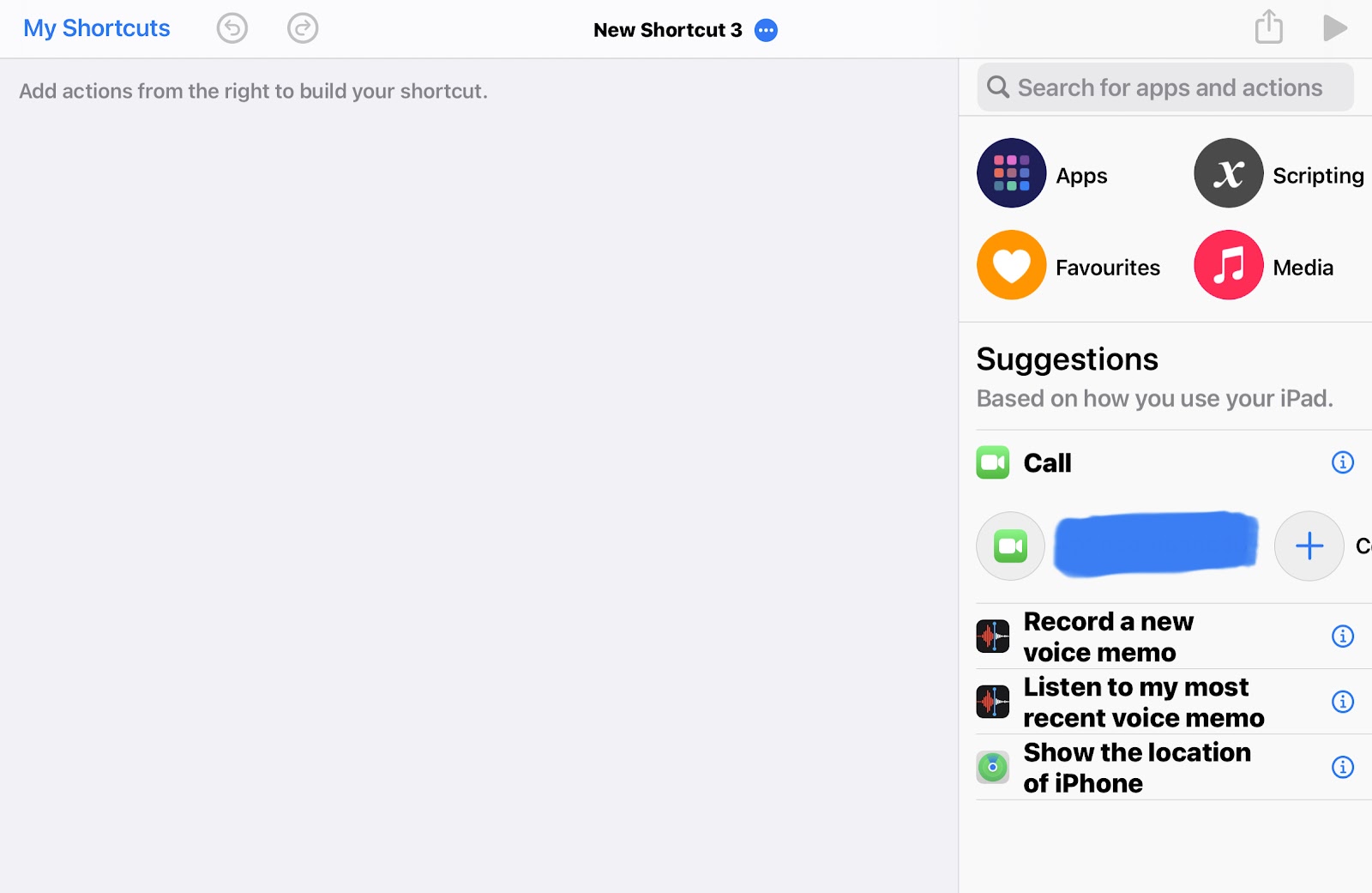
    In addition to the general voice commands for Siri you can also create your own custom commands using shortcuts.

    First of all run “shortcuts” app then click on + icon and create your custom siri command like visiting specific url or anything else.

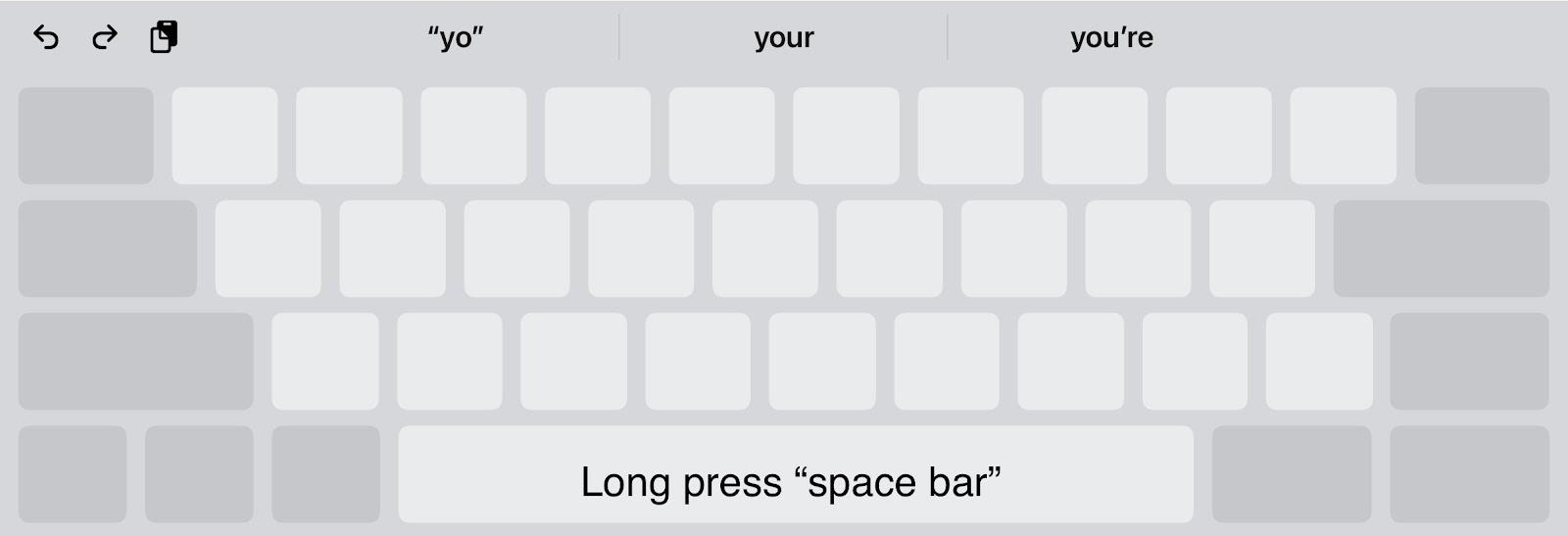
    •  Use your keypad as touchpad to navigate

    On IOS you can use your keypad as trackpad to do so you only have to longpres your space barAfter that you can scroll up, down, left and right as you want.

    •  Floating keyboard on IPad

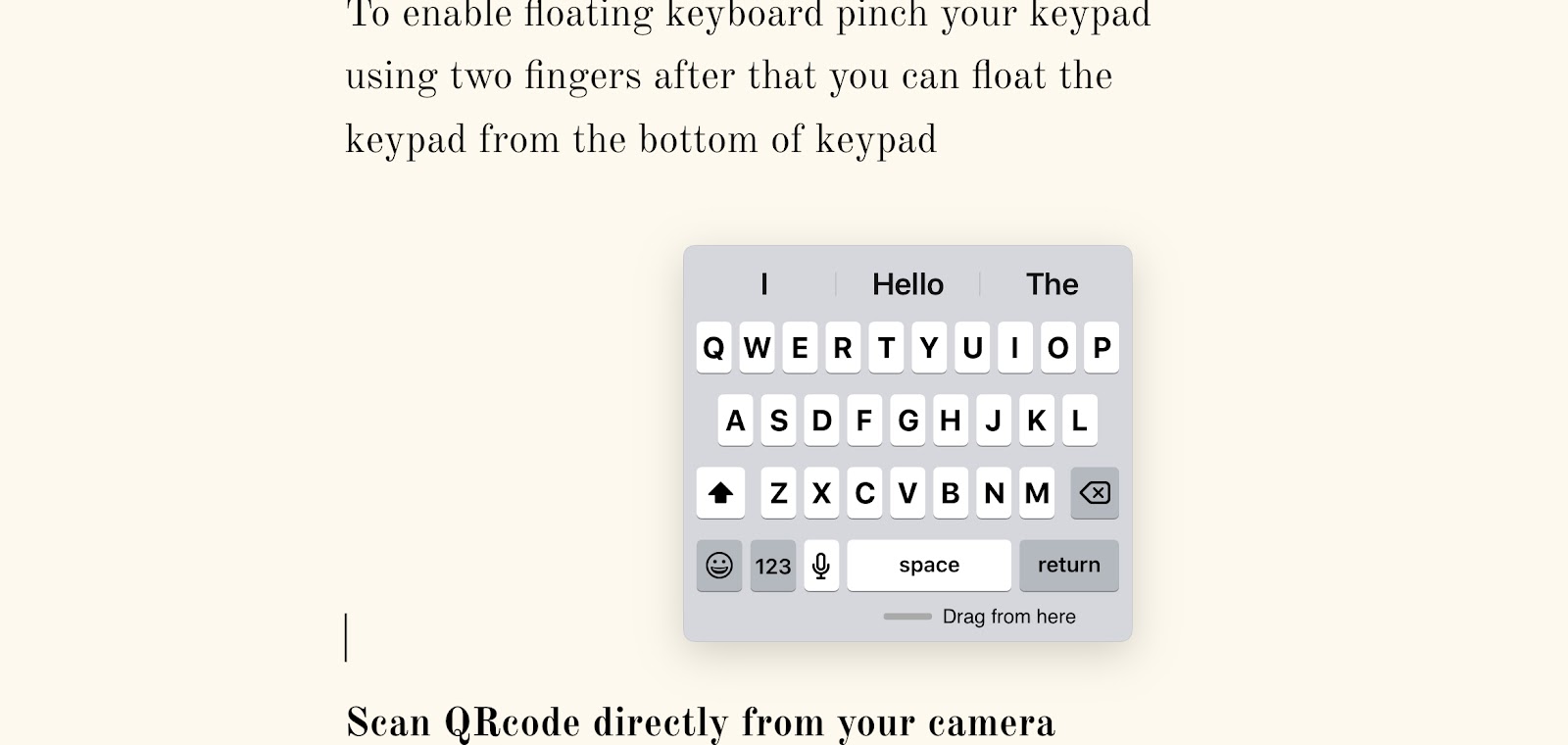
    On IPad floating keyboard is a feature at the time when you want to use one handed

    To enable floating keyboard pinch your keypad using two fingers after that you can float the keypad from the bottom of keypad  

    •  Scan QRcode directly from your camera

    You might not know that on IPad you can scan any QR code directly from camera.

    On focusing your camera on any QR code it will automatically scant it and a pop up will appear after you click it you wll be directed to the linked url.

    •  Hide selected photos on IPad pro

    Everyone of us private or personal photos captured on our device and the time comes when someone from our relatives or friend ask us to watch photos on your IPad than this trick can save your personal pictures

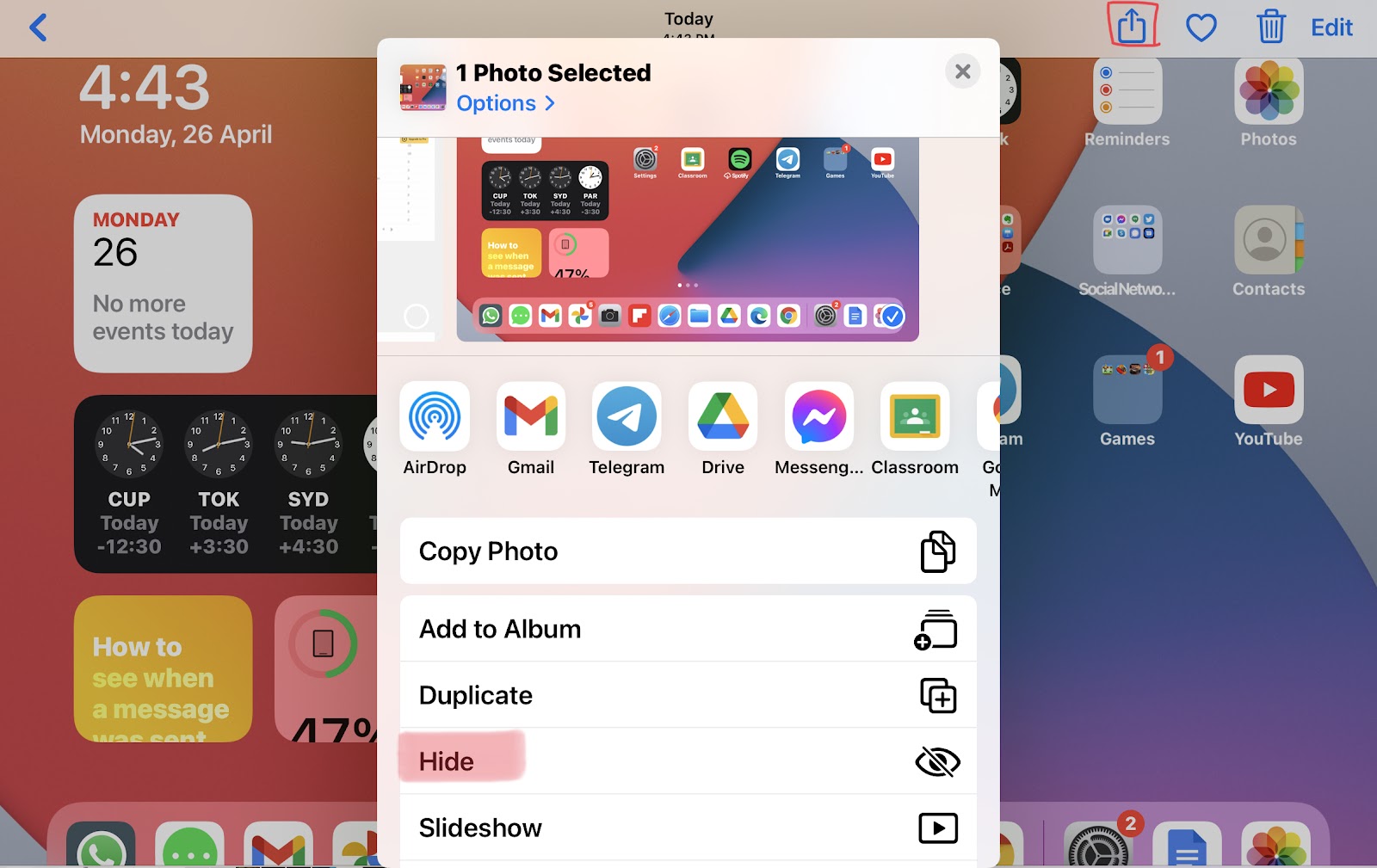
    So first of all open photo app on your IPad and select photos you want to hide.

    Using share button hide the selected photos

    After completing this step your photos will move to a new album named ‘Hidden’ but they are not truly hidden.

    You are required to open settings and navigate to photos in setting and disable hidden album so that no one could see you hidden album.

    •  Restrict Ipad to a particular app

    Sometimes your kids or your friend wants to use your IPad and you don’t want to give them complete access of your IPad so you can restrict their access using guided access in Accessibility setting of IPad. 

    To know more visit

  • JavaScript

    Java script is used to change HTML. It can change HTML attribute’s value and HTML style (CSS).

    It was invented by Brendan Eich in 1995, later Javascript became ECMA standard in the year 1997.

    Introduction

    Javascript is an essential component of web development. In HTML JavaScript code is inserted between <script> tags.

    Scripts can also be stored in separate external files ending with .js extension. External Javascript files are useful in places where same js code is to be used on different pages.

    <script> 
    …………
    JavaScript code goes here…. 
    </script>

    JavaScript is the main scripting language in HTML

    Advantages of external .js file

    • It seperates HTML and code.
    • It makes HTML and Javascript easier to read and maintain.
    • cached Javascript can speed up page loading time.

    JavaScript Functions

    JavaScript Functios are block of codes

    JavaScript Functions can be entered in <head>——</head>

    Or <body>———</body>section in HTML.

    JavaScript print 

    JavaScript print function can be used to print the current window.

    <!DOCTYPE html>
    <html>
    <body>
    ​<h2>The window.print() Method</h2>​
    <p>Click the button to print the current page.</p>​
    <button onclick=”window.print()”>Print this page</button>​
    </body>
    </html>​