Category: Uncategorized

  • JavaScript

    Java script is used to change HTML. It can change HTML attribute’s value and HTML style (CSS).

    It was invented by Brendan Eich in 1995, later Javascript became ECMA standard in the year 1997.

    Introduction

    Javascript is an essential component of web development. In HTML JavaScript code is inserted between <script> tags.

    Scripts can also be stored in separate external files ending with .js extension. External Javascript files are useful in places where same js code is to be used on different pages.

    <strong><script></strong> 
    …………
    JavaScript code goes here….<strong> </strong>
    <strong></script></strong>

    JavaScript is the main scripting language in HTML

    Advantages of external .js file

    • It seperates HTML and code.
    • It makes HTML and Javascript easier to read and maintain.
    • cached Javascript can speed up page loading time.

    JavaScript Functions

    JavaScript Functios are block of codes

    JavaScript Functions can be entered in <head>——</head>

    Or <body>———</body>section in HTML.

    JavaScript print 

    JavaScript print function can be used to print the current window.

    <!DOCTYPE html>
    <html>
    <body>
    ​<h2>The window.print() Method</h2>​
    <p>Click the button to print the current page.</p>​
    <button onclick=”window.print()”>Print this page</button>​
    </body>
    </html>​

  • InBuilt App lock For Apple IOS

    InBuilt App lock For Apple IOS

    App Lock

    Apple has given most secure screen lock finger prints / Face ID, but when it comes to lock individual apps Apple does not give much leverage to third party apps due to security reasons.On many occasions someone we know from our relatives or friends ask to use our devices for a particular application, and you cannot resist giving then comes the need of App Lock feature.

    There are two methods inbuilt in Apple IOS to serve this purpose, first one is Guided Access and second is Screen Time.

    Guide Access 

    First of all navigate to Accessibility in settings then select Guided Access and turn this ON after that set password for guided access.

    Triple click top button to start Guided Access, you can start this for any application. After enabling this setting users will be restricted to the app on which Guides Access was started.

    To stop guided Access double click top button to unlock with Face ID and triple click to unlock with password.

    Screen Time

    Apple IOS  settings have a feature ‘screen time’ using this you can lock any app you want without installing any third party applications.

    Step by Step Guide to Lock Apps

    Go to settings > Screen time

    First Step

    First click on ‘App Limits’ and then select apps that you want to lock or limit access. After selecting apps set time to the minimum possible value, at this time 1 minute is the minimum time you can select.

    Second Step

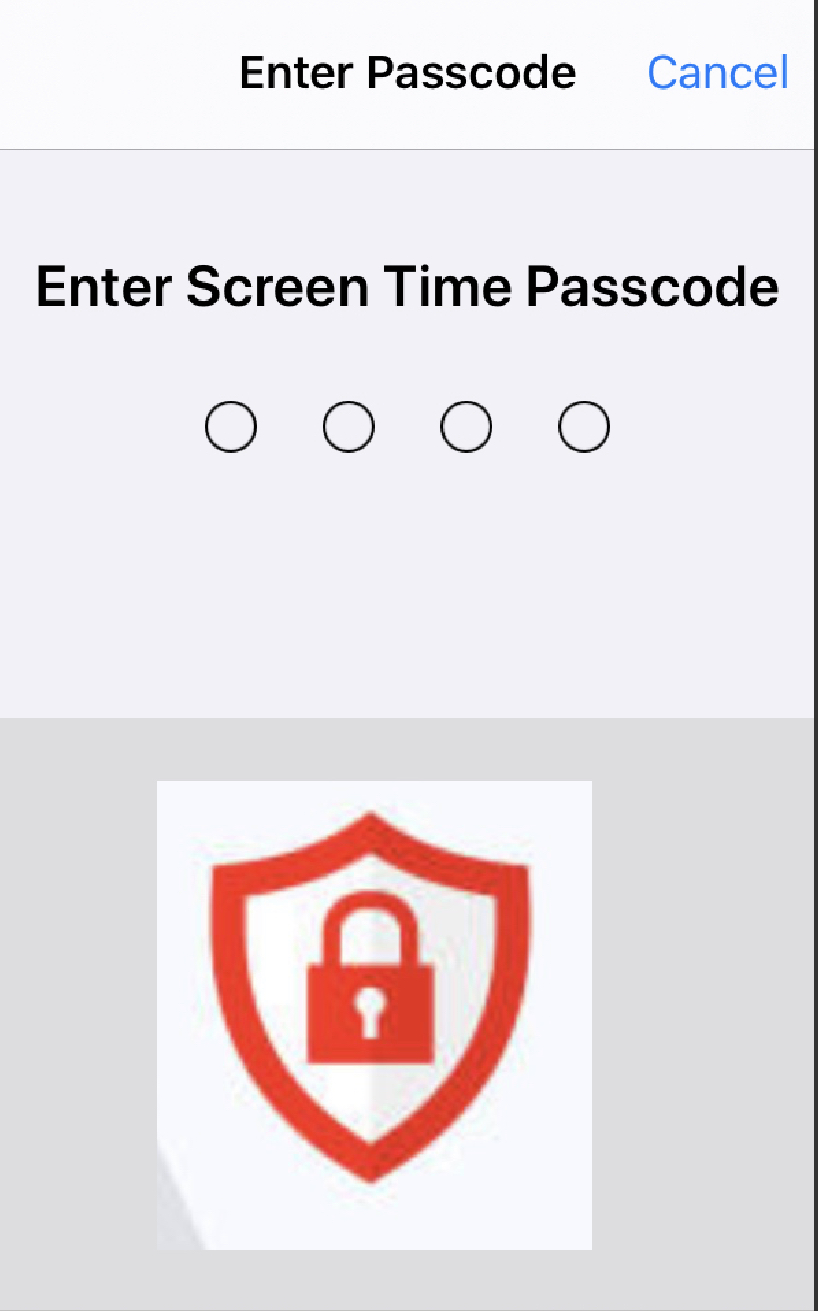
    In this step you have to setup lock password, set a four digit numerical password. Here you will have to provide your Apple ID and password for recovery option.

    Although these settings does not work exactly as an App Lock but even though you can use it as an App Lock.