Introduction
Computers are found almost everywhere today: in shops, offices, schools, hospitals, laboratories, and homes. A typical desktop system is built around the CPU, but on its own the CPU cannot take your typing, show you a picture, or keep your files when the power is switched off. For those jobs a computer relies on additional hardware connected to it, known as peripheral devices or simply peripherals.
In this tutorial you will learn what peripherals are, how they are classified into input, output, and storage devices, how each common device works, and how peripherals connect to a computer. A comparison table, a summary table, and practice questions with answers are included at the end.
What Is a Peripheral Device?
A peripheral device is any piece of hardware that connects to a computer to give it extra capability but is not part of the computer’s core processing and memory circuitry (the CPU, main memory, and motherboard). The keyboard, mouse, and monitor you use every day are peripherals, and so are printers, scanners, speakers, and external hard drives. Some peripherals are built into laptops, such as the touchpad and webcam, while others plug in from outside.
Peripherals are generally classified into three main types:
| Category | What it does | Examples |
|---|---|---|
| Input devices | Send data and commands into the computer | Keyboard, mouse, scanner, microphone |
| Output devices | Present the results of processing from the computer to the user | Monitor, printer, speakers, projector |
| Storage devices | Keep data permanently or for transfer and backup | External HDD/SSD, USB flash drive, memory card, DVD |
Some devices belong to more than one group. A touchscreen is both an input device (it senses your touch) and an output device (it displays the picture). A headset combines speakers (output) with a microphone (input), and a multifunction printer prints (output) and scans (input). Network cards and modems are also two-way devices, since they send and receive data.
How Peripherals Connect to a Computer
A peripheral talks to the computer through either a cable and port or a wireless link. The most common connections are:
| Connection | Typically used for |
|---|---|
| USB (Type-A, Type-C) | Keyboards, mice, printers, scanners, flash drives, external drives, webcams |
| HDMI / DisplayPort | Monitors, projectors, and televisions (video and audio) |
| VGA | Older monitors and projectors (video only, analogue) |
| 3.5 mm audio jack | Wired headphones, speakers, and microphones |
| Ethernet (RJ-45) | Wired network connection, network attached storage |
| Bluetooth | Wireless keyboards, mice, headphones, game controllers |
| Wi-Fi | Wireless printers, network storage |
Most peripherals also need a small piece of software called a device driver, which lets the operating system communicate with the hardware. Modern devices are usually plug and play: the operating system recognizes them as soon as they are connected and installs a suitable driver automatically.
Input Devices
Input devices convert what a person does (pressing a key, moving a hand, speaking, or placing a document on glass) into digital signals that the computer can process.
Keyboard
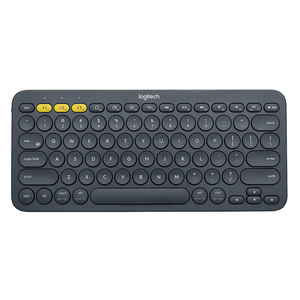
The keyboard is one of the most commonly used peripherals. It is used to enter text, numbers, and commands. Most keyboards use the QWERTY layout and are divided into groups of keys: alphanumeric keys, function keys (F1 to F12), a numeric keypad, navigation and arrow keys, and modifier keys such as Shift, Ctrl, and Alt.
Many kinds of keyboards are available:
- Standard keyboard: the full-size layout with a numeric keypad.
- Compact keyboard: drops the numeric keypad or other keys to save desk space.
- Ergonomic keyboard: split or curved to reduce wrist strain during long typing sessions.
- Mechanical keyboard: uses a separate switch under every key, giving a distinct feel and a long life; popular with typists and gamers.
- Gaming keyboard: adds programmable keys, fast response, and backlighting.
- Wireless keyboard: connects through Bluetooth or a USB receiver instead of a cable.
Mouse
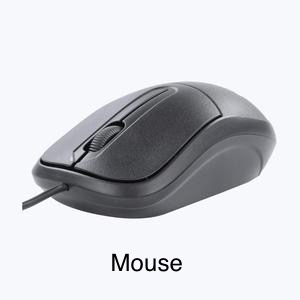
The mouse is a pointing device. Moving it moves a pointer on the screen, and its buttons and scroll wheel let you select, open, drag, and scroll in a GUI (Graphical User Interface). Its sensitivity is measured in DPI (dots per inch): the higher the DPI, the further the pointer moves for the same hand movement.
- Mechanical mouse: uses a rubber ball and internal rollers to detect movement. It collects dirt easily and is now obsolete.
- Optical mouse: shines an LED light on the surface and tracks the movement with a small sensor. It has no moving parts.
- Laser mouse: works like an optical mouse but uses a laser, so it tracks more precisely and works on glossy surfaces.
- Trackball mouse: stays in one place while you roll a ball with your thumb or fingers, which suits small desks.
- Wireless mouse: connects through Bluetooth or a USB receiver and runs on batteries or a rechargeable cell.
Touchpad
A touchpad is a compact alternative to the mouse and is built into most laptops. It is a flat surface that senses the position and movement of your finger and moves the pointer accordingly. Many touchpads support multi-touch gestures, such as pinching to zoom, two-finger scrolling, and three-finger swipes to switch between windows, which makes them very versatile.
Touchscreen
A touchscreen lets you interact directly with what is displayed by tapping, swiping, or pinching. It is found on smartphones, tablets, some laptops, ATMs, ticket kiosks, and point-of-sale terminals. Because it senses touch and displays the result on the same surface, it works as both an input and an output device.
Game Controller
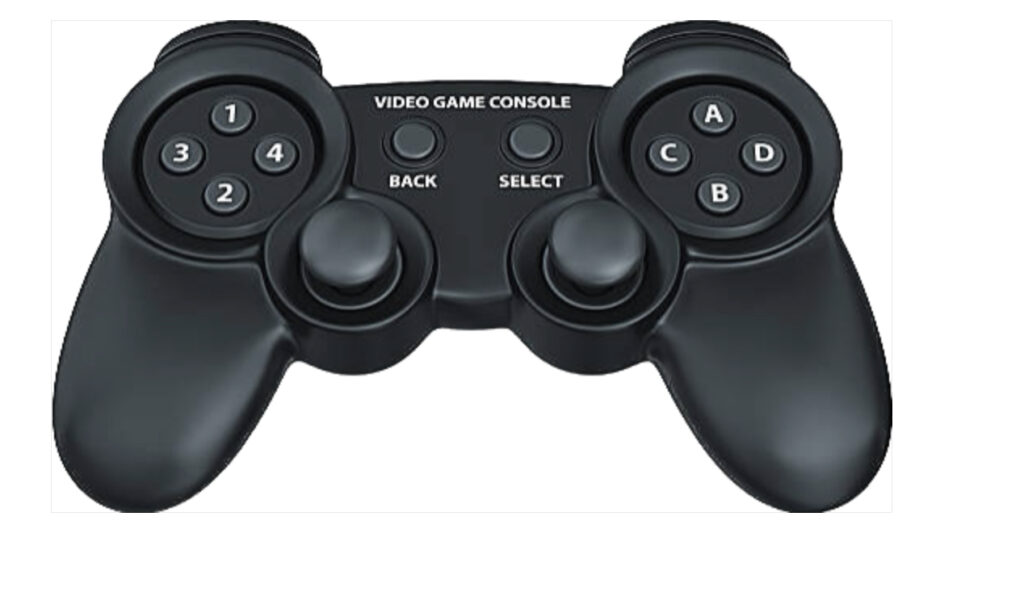
A game controller is used to play games on computers, gaming consoles, and mobile devices. A typical gamepad has buttons, triggers, a directional pad, and one or two joysticks to control the characters and actions in a game. Many also include vibration (haptic) feedback and connect wirelessly. Joysticks and steering wheels are specialised controllers for flight and racing games.
Microphone
A microphone captures sound waves and converts them into an electrical signal, which the computer’s sound hardware then digitizes. You need one to make audio calls, record voice or music, dictate text, or give voice commands. Microphones are available as standalone USB or 3.5 mm devices, as part of a headset, and built into laptops and webcams.
Webcam
A webcam is a small digital camera that captures live video and still images. It is used for video calls, online classes, streaming, and recording. Webcam quality is described by resolution, such as 720p (HD) or 1080p (Full HD).
Scanner
A scanner converts a physical document or picture into a digital image and saves it in a format such as PDF, JPEG, or PNG. With OCR (Optical Character Recognition) software, the scanned text can be turned into editable text, for example in a Word document. The quality of a scan is described by its resolution in DPI. Common types include:
- Flatbed scanner: you place the page on a glass plate; it handles books, photographs, and fragile documents well.
- Document scanner: feeds a stack of sheets automatically, which is fast for offices.
- Handheld scanner: you move it across the page by hand; it is portable.
- Photograph scanner: built for photos, slides, and film negatives at high resolution.
- Barcode scanner: reads the black and white bars of a barcode using light. It is used at shop checkouts and in warehouses.
Digital Pen (Stylus) and Graphics Tablet
A digital pen, also called a stylus, is used to write and draw on a digital surface such as a tablet screen or a graphics tablet. Many pens are pressure sensitive, so pressing harder makes a thicker or darker line. They are widely used in graphic design, digital art, photo editing, and handwritten note taking.
Biometric Readers
Fingerprint readers and face-recognition cameras identify a person from a physical characteristic. They are used to unlock laptops and phones, mark attendance, and control access to buildings.
Output Devices
Output devices present the results of processing in a form people can see, hear, or hold. Output on a screen or speaker is called soft copy (it disappears when switched off), while output on paper is called hard copy.
Monitors
A monitor displays text, images, and video. The main technologies are:
- CRT (Cathode Ray Tube): an early technology that fires electron beams at a phosphor-coated glass screen. CRT monitors are bulky and heavy and use more power, so they are obsolete.
- LCD (Liquid Crystal Display): a flat-panel technology in which liquid crystals control how much light from a backlight passes through each pixel. It is used in desktop monitors, televisions, and many other devices, and needs far less space and power than a CRT.
- LED (Light-Emitting Diode) monitors: these are LCD panels that use LEDs as the backlight instead of older fluorescent tubes. They are thinner, brighter, more energy efficient, and produce better colour and contrast.
- OLED (Organic LED): each pixel produces its own light, so no backlight is needed. Black pixels can be switched fully off, giving excellent contrast, and the panels can be very thin or even flexible.
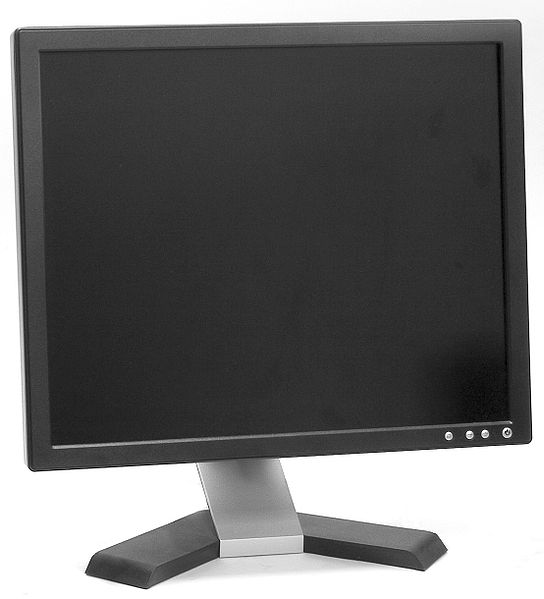
When choosing a monitor, look at the screen size (measured diagonally in inches), the resolution (for example 1920 × 1080 for Full HD or 3840 × 2160 for 4K), and the refresh rate in hertz (60 Hz is standard; gamers often prefer 144 Hz or more).
Speakers
Speakers convert the electrical audio signal from the computer into sound waves. They range from small built-in laptop speakers to desktop stereo sets with a subwoofer for deep bass. They connect through a 3.5 mm jack, USB, HDMI, or Bluetooth.
Headphones
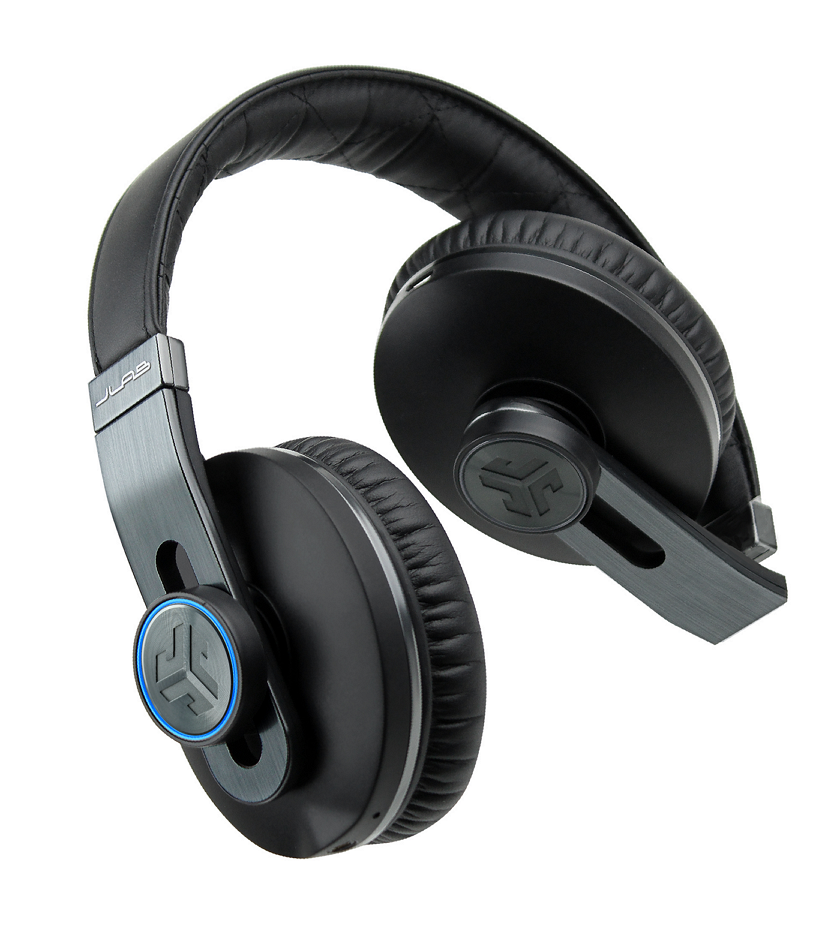
Headphones let you listen to music, podcasts, lessons, and calls privately without disturbing others. They are worn over the ears, on the ears, or in the ears (earbuds), and usually have soft ear pads, volume controls, and in many models a built-in microphone. Some also offer active noise cancellation, which uses microphones to reduce background noise.
There are two main types: wired headphones, which plug into a 3.5 mm or USB port and never need charging, and wireless headphones, which connect over Bluetooth and run on a battery.
Printers
A printer produces a hard copy of digital data on paper or other material. Printers receive their instructions from a connected PC or smartphone over a USB cable, Wi-Fi, or Bluetooth. Printer quality is measured by resolution in DPI and speed in pages per minute (PPM). Printers are classified by how they put the image on the page:
| Type | How it works | Best for |
|---|---|---|
| Inkjet | Sprays tiny droplets of liquid ink onto the paper | Colour documents and photos; low purchase price |
| Laser | Uses a laser and a drum to fuse toner powder onto the paper with heat | Fast, sharp black-and-white text in offices |
| Photo printer | Specialised inkjet or dye-sublimation printer for photographic quality | Printing photographs |
| Dot matrix | Pins strike an inked ribbon against the paper (impact printing) | Multi-part carbon forms, invoices |
| Thermal / barcode printer | Heats special paper or a ribbon to create the image | Receipts, shipping labels, barcodes |
| 3D printer | Builds a solid object layer by layer from plastic filament or resin | Prototypes, models, spare parts |
Plotters
Plotters produce large, high-precision drawings. A traditional pen plotter draws continuous lines by moving a pen across the paper, rather than building up the image from a pattern of dots as a printer does. Modern plotters also use inkjet heads or cutting blades, and they work from digital vector designs. They can output on paper, fabric, vinyl, wood, aluminium, or cardboard. Plotters are used in architecture, engineering, CAD (computer-aided design), map making, and sign making. The main types are:
- Pen plotter: draws with pens, pencils, or markers.
- Inkjet plotter: sprays ink to print large, full-colour drawings and posters.
- Cutting plotter: uses a blade to cut shapes from vinyl, paper, or cardboard.
- Electrostatic plotter: uses an electric charge to attract toner onto the paper.
- Drum plotter: the paper moves back and forth on a rotating drum while the pen moves sideways.
- Flatbed plotter: the paper lies flat and the pen moves over it in two directions.
Projectors
A projector displays images and video from a computer or other media device on a large screen or wall. Projectors connect through HDMI, VGA, or USB, or wirelessly, and are used in classrooms, meeting rooms, and home theatres. Two things matter most: brightness, measured in lumens, which decides how well the image shows in a lit room, and resolution. Projectors are usually grouped by the technology that forms the image:
- DLP (Digital Light Processing): uses a chip covered in microscopic mirrors; compact and good for video.
- LCD projector: passes light through small LCD panels; known for bright, colourful pictures.
- LCoS (Liquid Crystal on Silicon): a hybrid that gives very sharp, high-contrast images, mostly in premium models.
The light source can be a traditional lamp, LEDs, or a laser; LED and laser projectors last much longer than lamp-based ones.
Storage Peripherals
Storage peripherals are devices connected to the outside of a computer to increase its storage capacity, move data between computers, or keep backups. They connect through USB, Wi-Fi, or Ethernet. Unlike main memory (RAM), they keep their data even when the power is off.
External Hard Disk Drive (HDD)
An external HDD stores data magnetically on rapidly spinning platters, which are read and written by moving heads. These portable drives plug into a computer with a USB cable and offer very large capacities (often several terabytes) at a low price per gigabyte. Because they contain moving parts, they are more vulnerable to damage from shock, drops, and heat, especially while running.
External Solid State Drive (SSD)
An external SSD stores data in flash memory chips and has no moving parts. It is much faster than an HDD, silent, lighter, uses less power, and withstands shocks and rough handling far better. Its main drawback is a higher price per gigabyte. The table compares the two:
| Feature | External HDD | External SSD |
|---|---|---|
| Storage technology | Magnetic spinning platters | Flash memory chips |
| Speed | Slower | Much faster |
| Moving parts | Yes | No |
| Durability against shock | Lower | Higher |
| Noise and power use | Audible, higher power | Silent, lower power |
| Price per GB | Cheaper | More expensive |
Memory Cards
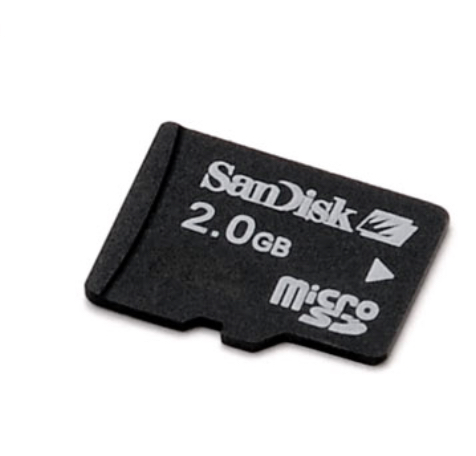
Memory cards are small flash-memory cards used in smartphones, digital cameras, drones, and gaming consoles. They are compact and resistant to shock, vibration, and temperature changes. To copy files to a computer, you insert the card into a card reader or into the computer’s card slot.
Memory cards come in several form factors, including the SD card, the smaller microSD card, CompactFlash (CF), and Sony’s Memory Stick.
USB Flash Drives
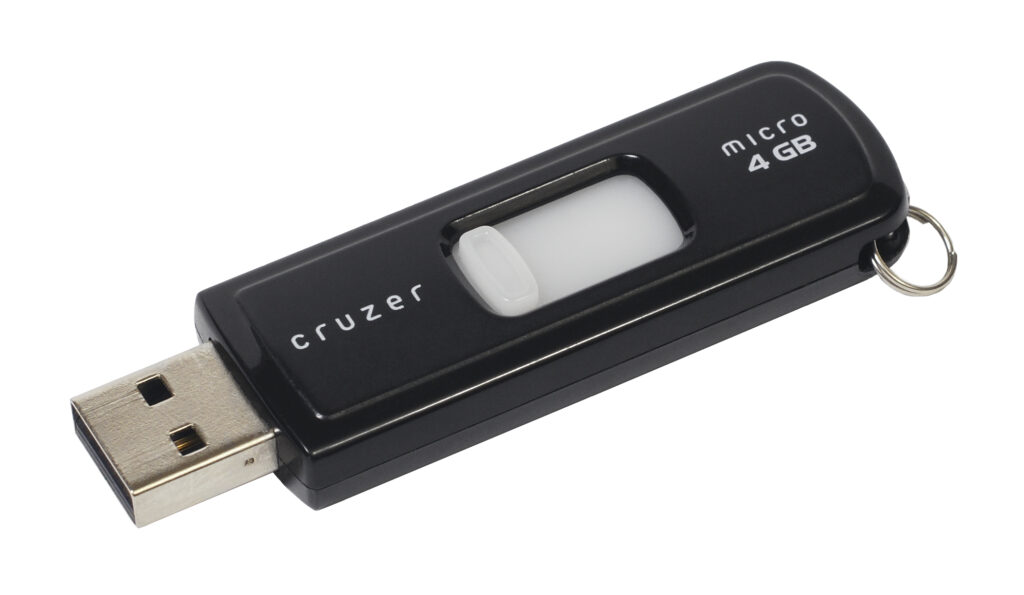
USB flash drives, also called pen drives, memory sticks, or thumb drives, are small flash-memory devices that plug straight into a USB port. They are mainly used to carry files from one computer to another. They are also used as installation media when installing an operating system, and some work as security keys for signing in or signing documents.
Flash drives differ in capacity (from a few gigabytes to a terabyte or more) and in transfer speed, which depends on the USB standard: USB 2.0 tops out at 480 Mbps, while USB 3.x drives start at 5 Gbps.
Network Attached Storage (NAS)
A NAS is a specially built storage computer that holds one or more drives and shares them over a network, so that many connected computers and phones can open, save, and modify files in one central place. It connects through an Ethernet cable or Wi-Fi and is managed with software through a web page or app. Many NAS units can mirror data across several drives (a feature called RAID), so files survive the failure of one drive. This makes a NAS a popular choice for home media libraries, small-office file sharing, and automatic backups.
Optical Storage Devices
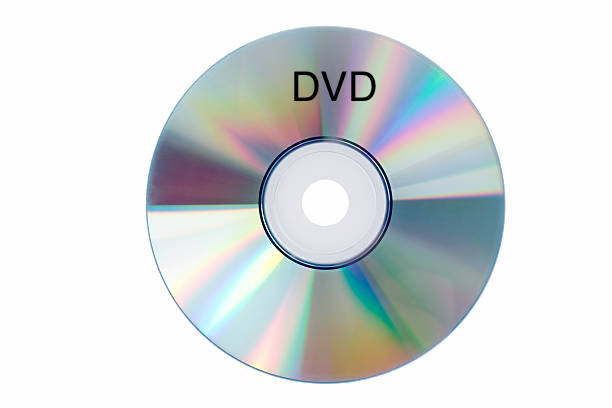
Optical storage devices use a laser beam to read and write data on a shiny disc. Data is stored as tiny pits and flat areas that reflect the light differently. The common formats are:
- CD: about 700 MB, read with an infrared laser.
- DVD: about 4.7 GB per layer, read with a red laser.
- Blu-ray: about 25 GB per layer, read with a blue-violet laser.
Discs may be read-only (ROM), recordable once (R), or rewritable (RW). Optical drives are now less common in laptops, but discs are still used for movies, software distribution, and long-term archives.
Backup tip: storage devices can fail or be lost, so important files should be kept in more than one place. A widely recommended habit is the 3-2-1 rule: keep three copies of your data, on two different types of storage, with one copy stored off-site (for example, in cloud storage).
Summary of Common Peripherals
| Device | Category | Main purpose |
|---|---|---|
| Keyboard | Input | Enter text, numbers, and commands |
| Mouse / touchpad | Input | Control the on-screen pointer |
| Touchscreen | Input and output | Touch what is displayed |
| Game controller | Input | Control games |
| Microphone | Input | Capture sound |
| Webcam | Input | Capture live video and photos |
| Scanner | Input | Convert paper documents to digital files |
| Digital pen | Input | Write and draw on a digital surface |
| Monitor | Output | Display text, images, and video |
| Speakers / headphones | Output | Play sound |
| Printer | Output | Produce hard copies on paper (or 3D objects) |
| Plotter | Output | Produce large, precise drawings |
| Projector | Output | Show the display on a large screen |
| External HDD / SSD | Storage | Extra storage and backup |
| Memory card / USB drive | Storage | Portable storage and file transfer |
| NAS | Storage | Shared network storage |
| CD / DVD / Blu-ray | Storage | Optical storage and distribution |
Practice Questions
- What is a peripheral device? Name the three main categories.
- Classify each of these as input, output, or storage: scanner, projector, SD card, microphone, plotter.
- Why is a touchscreen called both an input and an output device?
- State two advantages of an SSD over an HDD, and one disadvantage.
- How does a plotter differ from a printer?
- What is the difference between soft copy and hard copy output?
- What does a device driver do?
- Which type of optical disc holds the most data per layer, and why?
Show answers
- A peripheral is hardware connected to a computer that adds capability but is not part of its core processing and memory circuitry. The three categories are input devices, output devices, and storage devices.
- Scanner: input. Projector: output. SD card: storage. Microphone: input. Plotter: output.
- It senses the user’s touch (input) and displays the picture on the same surface (output).
- Advantages: much faster, and more resistant to shock because it has no moving parts (also silent and lower power). Disadvantage: higher price per gigabyte.
- A traditional plotter draws continuous lines with pens from vector designs and handles very large, precise drawings, whereas a printer builds the image from a pattern of dots on standard-size pages.
- Soft copy is output shown on a screen or played through speakers and disappears when switched off; hard copy is a permanent physical output such as a printout.
- A device driver is software that lets the operating system communicate with a hardware device.
- Blu-ray (about 25 GB per layer), because its blue-violet laser has a shorter wavelength and can read much smaller pits packed more closely together.
Key Takeaways
- Peripherals extend what a computer can do and fall into three groups: input, output, and storage.
- Input devices send data in, output devices present results, and storage devices keep data when the power is off. Some devices, such as touchscreens, do two jobs.
- Peripherals connect through ports (USB, HDMI, Ethernet) or wirelessly (Bluetooth, Wi-Fi), and usually need a driver that the operating system installs automatically.
- Choose devices by their specifications: DPI for mice and scanners, resolution and refresh rate for monitors, DPI and PPM for printers, lumens for projectors, and capacity and speed for storage.
- HDDs are cheap and spacious, SSDs are fast and rugged, and important data should always be backed up in more than one place.
Conclusion
A computer is only as useful as the devices that surround it. Input peripherals let you communicate with the machine, output peripherals show you what it has done, and storage peripherals keep your work safe and portable. Knowing what each device does, how it works, and how it connects helps you choose the right equipment for school, work, or play, and makes it easier to understand how a complete computer system fits together.
For more tutorials on this topic, visit TutorialsDestiny.